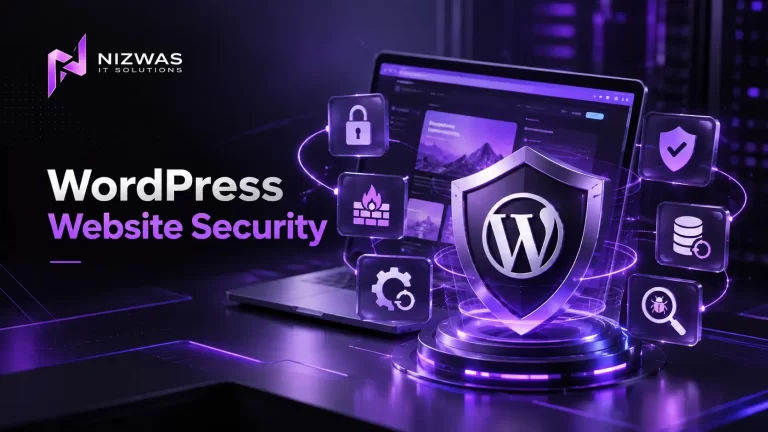
WordPress website security is not simply about installing a security plugin and hoping nothing goes wrong.
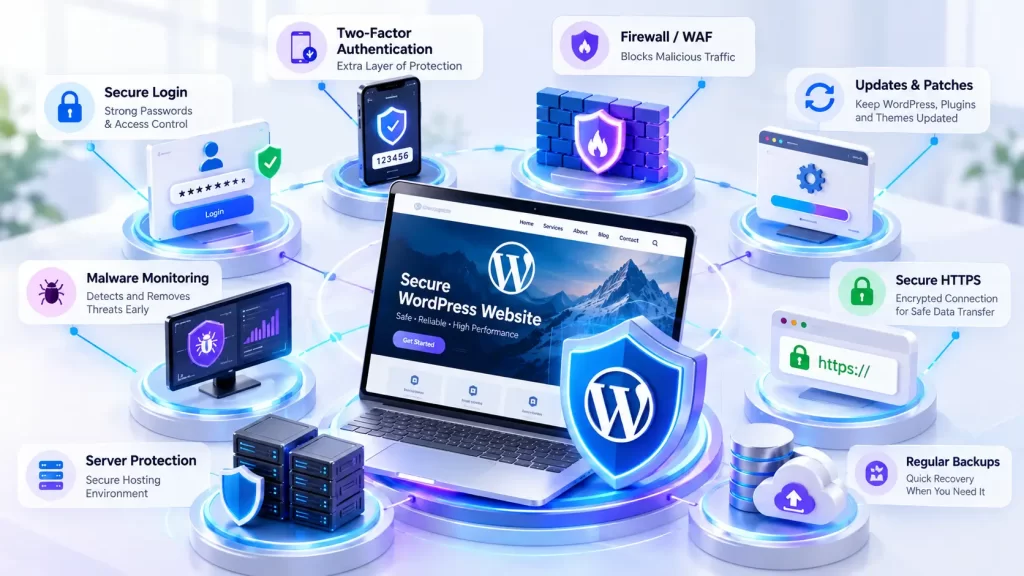
A secure WordPress website depends on several layers working together: updated software, strong authentication, sensible user permissions, secure hosting, backups, firewall protection, safe configuration, monitoring, and a recovery plan.
WordPress itself describes security as a process of reducing risk rather than creating a system that can never be compromised. Its official hardening guidance covers everything from passwords and plugins to file permissions, database security, backups, logging, and monitoring.
That distinction matters for business websites.
A compromised website can be modified without immediately looking broken. Attackers may inject unwanted content, create redirects, add spam pages, abuse administrator accounts, place malicious code in files, or use vulnerable components as an entry point.
Security can also intersect with SEO. Google documents that hacked sites can sometimes be abused for cloaking and other deceptive behavior, which makes detecting and recovering from a compromise important for both users and search visibility.
This guide takes a practical approach. Instead of recommending dozens of plugins or complicated server configurations, it focuses on the security controls that should form the foundation of a well-managed WordPress website.
What Is WordPress Website Security?
WordPress website security is the collection of technical controls, configuration practices, maintenance processes, and monitoring activities used to reduce the risk of unauthorized access, malware, data loss, exploitation, and service disruption.
It covers more than WordPress core.
A typical WordPress installation has multiple layers:
| Layer | What needs protection |
|---|---|
| WordPress core | Core files and application functionality |
| Plugins | Third-party functionality and code |
| Themes | Templates, functions and frontend code |
| Accounts | Administrators, editors and other users |
| Hosting | Server, PHP, database and operating system |
| Network | DNS, CDN, firewall and incoming traffic |
| Files | WordPress configuration and uploaded content |
| Database | Website content, settings and user information |
| Backups | Recovery copies of the website |
| Monitoring | Detection of suspicious activity |
WordPress recommends keeping core software, themes and plugins current and choosing extensions that are actively maintained.
Who Wrote This Guide?
This guide is prepared from a WordPress development, maintenance, performance, technical SEO and website-security perspective by the Nizwas IT Solutions team.
Nizwas IT Solutions works with WordPress development, website maintenance, security, performance optimization and technical SEO. Its existing security and maintenance offering includes updates, backups, malware monitoring, Cloudflare configuration, firewall protection, login protection, SSL monitoring, vulnerability scanning and website monitoring.
The purpose of this article is educational: to give website owners and WordPress managers a practical framework they can use before deciding whether professional help is necessary.
What Will You Learn?
By the end of this guide, you will understand:
- Why WordPress websites become vulnerable
- Which security controls should be prioritized
- How to protect administrator accounts
- Why plugin and theme management matters
- How backups fit into security
- What a WAF does
- How to approach WordPress file and configuration security
- How security problems can affect SEO
- What to monitor after hardening
- What to do if you suspect a compromise
Quick Overview: The 15-Step WordPress Security Checklist
If you need a quick starting point, work through these controls:
- Keep WordPress core updated.
- Keep plugins updated.
- Keep themes updated.
- Remove abandoned and unnecessary software.
- Use strong, unique passwords.
- Enable two-factor authentication for privileged accounts.
- Minimize administrator accounts.
- Protect the login surface.
- Use HTTPS correctly.
- Maintain automated, off-site backups.
- Test backup restoration.
- Configure firewall/WAF protection.
- Protect sensitive configuration and filesystem areas.
- Monitor logs, uptime and suspicious activity.
- Maintain a documented recovery process.
The important point is that these controls reinforce each other.
A firewall cannot compensate for an administrator using a compromised password. A backup cannot prevent an attack, but it can dramatically improve recovery. A security plugin can identify suspicious activity, but it cannot replace good software maintenance.
Why Does WordPress Website Security Matter?
1. Your website is a business asset
For many companies, WordPress is connected to lead forms, customer enquiries, ecommerce, analytics, email services, advertising campaigns and business information.
A security incident can therefore become a business continuity problem rather than just a technical inconvenience.
2. Vulnerabilities can exist outside WordPress core
WordPress has an established security team and publishes security fixes, but the broader ecosystem includes thousands of plugins and themes.
That means your security posture is affected by everything you install.
An attractive plugin that has not been maintained for years can create a different risk profile from a well-supported plugin receiving regular updates.
3. Compromises can affect search visibility
A hacked website may contain unauthorized pages, redirects, injected links or altered content.
Google specifically notes that compromised sites can sometimes be used for cloaking and other deceptive behavior.
That doesn’t mean every security incident will cause an SEO penalty. It means website owners should treat unexpected indexed pages, redirects, spam content and unexplained Search Console changes as possible technical-security signals worth investigating.
4. Downtime costs more than prevention
Consider a business website that generates enquiries through a contact form.
If the website is unavailable for eight hours, the cost isn’t limited to hosting or development time. Potentially missed enquiries and customer confidence can also matter.
Security should therefore be considered alongside reliability, performance and maintenance.
Key Benefits and Challenges
Benefits of a Strong Security Strategy
A layered approach can help you:
- Reduce common attack opportunities
- Limit unauthorized access
- Detect suspicious changes earlier
- Recover faster after incidents
- Protect customer and business information
- Reduce avoidable downtime
- Maintain website availability
- Support a healthier technical SEO environment
Common Challenges
Security management becomes harder when:
- The website has dozens of plugins.
- Several people have administrator access.
- Nobody owns the update process.
- Backups exist but have never been restored.
- Hosting access is shared casually.
- Development and production environments are mixed.
- Security settings were added without documentation.
- Old themes and plugins remain installed.
- The website relies on custom code nobody currently maintains.
The solution isn’t necessarily to add more security software.
Often, the first improvement is reducing complexity.
How Does WordPress Website Security Work?
Think of WordPress security as a series of defensive layers.
Layer 1: Identity and access
Protect the people who can access WordPress.
Use:
- Unique passwords
- A password manager
- Two-factor authentication
- Least-privilege roles
- Limited administrator accounts
- Removal of former employees or contractors
WordPress recommends strong passwords and two-step authentication, and its current brute-force guidance also discusses rate limiting, WAF protection and passkeys as additional defenses.
Layer 2: Application security
Keep:
- WordPress core
- Plugins
- Themes
- PHP
- Supporting libraries
appropriately maintained.
An update should not simply mean clicking “Update” without considering compatibility.
For business-critical websites, a sensible workflow is:
Backup → Update → Test → Monitor
For larger websites, testing changes on staging before production deployment can reduce the risk of an update causing unexpected failures.
Nizwas has previously documented this principle in its WordPress update guidance, including the importance of backups, compatibility checks, staging and post-update testing.
Layer 3: Network protection
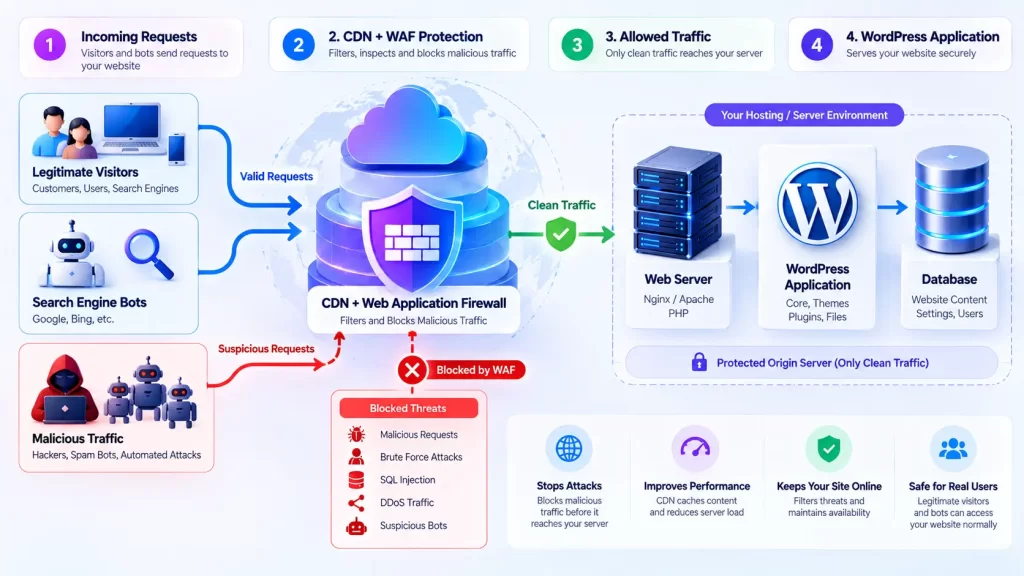
A WAF, CDN or edge security layer can filter malicious traffic before it reaches the WordPress application.
This is particularly useful for:
- Login attacks
- Automated scanning
- Malicious requests
- Rate limiting
- Suspicious IP activity
WordPress’s current brute-force guidance specifically recommends considering edge or WAF protection.
Layer 4: Recovery
No security strategy should assume prevention is perfect.
Backups provide a recovery path.
A useful backup strategy should answer:
- What is backed up?
- How frequently?
- Where is it stored?
- How long is it retained?
- Can it be restored?
- Who is responsible for restoration?
A backup that has never been tested is not the same thing as a verified recovery system.
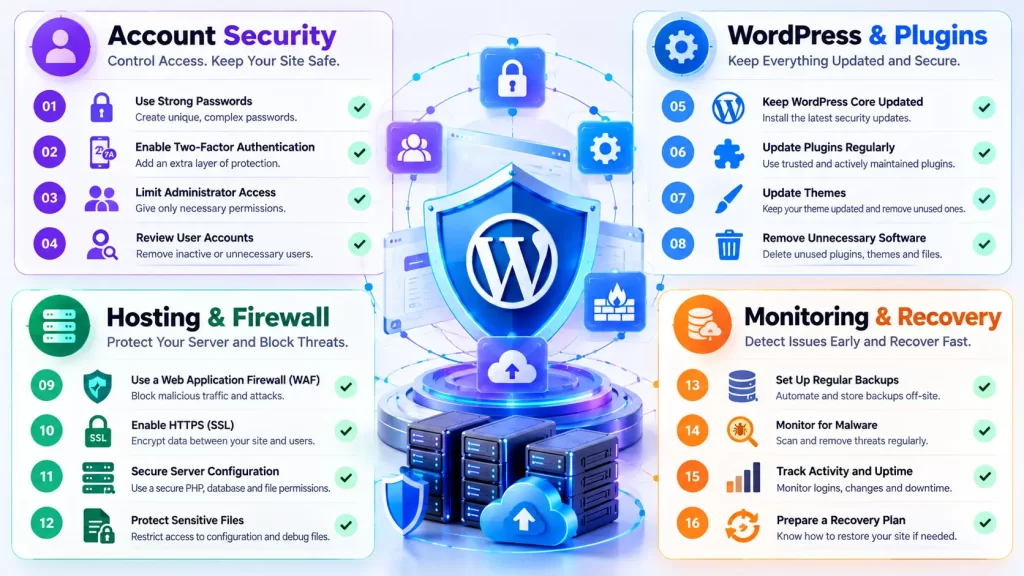
15 Practical Steps to Improve WordPress Website Security
1. Keep WordPress Core Updated
WordPress regularly releases updates, including security fixes.
Older versions can remain exposed after security information becomes public. WordPress’s official hardening documentation therefore recommends staying current.
Practical approach:
- Check Dashboard → Updates regularly.
- Enable appropriate automatic updates.
- Back up before major changes.
- Test important functionality after updates.
- Monitor error logs if a business-critical site behaves differently.
2. Update Plugins and Themes
Plugins and themes are part of your application’s attack surface.
Before installing a plugin, ask:
- Is it actively maintained?
- Is it compatible with your WordPress/PHP environment?
- Does the developer provide security updates?
- Do you actually need it?
- Is there a simpler alternative?
Don’t leave unused plugins installed simply because they are inactive.
If you don’t need something, remove it after confirming that nothing depends on it.
3. Use Strong Authentication
A strong password should be:
- Unique
- Long
- Difficult to guess
- Not reused on another service
For administrator accounts, add 2FA.
For teams, avoid sharing one administrator account between multiple people. Individual accounts provide better accountability and make access removal much easier.
4. Reduce Administrator Access
Not everyone needs administrator privileges.
Use the least powerful role necessary for the person’s responsibilities.
For example:
| Requirement | Possible role |
|---|---|
| Publish and manage content | Editor |
| Write/manage own posts | Author |
| Basic content contribution | Contributor |
| Full site administration | Administrator |
Review users periodically.
Remove accounts belonging to people who no longer need access.
5. Protect the WordPress Login
The login endpoint is a common target for automated attacks.
Useful controls include:
- Strong passwords
- 2FA
- Rate limiting
- WAF rules
- Login monitoring
- CAPTCHA/Turnstile where appropriate
- Alerts for suspicious authentication activity
Simply changing the login URL should not be treated as your primary security mechanism. WordPress’s current guidance emphasizes stronger controls such as authentication, rate limiting and edge protection.
6. Use HTTPS Correctly
HTTPS protects data transmitted between the browser and website.
Check that:
- The SSL certificate is valid.
- HTTP redirects to HTTPS.
- Important resources load over HTTPS.
- Forms do not submit sensitive information over HTTP.
- There are no unnecessary mixed-content warnings.
HTTPS is important for security, but having an SSL certificate alone does not make a WordPress website secure.
7. Maintain Reliable Backups
At minimum, your backup strategy should cover:
- Database
- WordPress files
- Uploads
- Themes
- Plugins
- Important configuration
Store backups separately from the production environment where practical.
Most importantly, perform restoration tests.
A successful backup job does not automatically prove that the resulting backup can restore the website correctly.
8. Add WAF Protection
A Web Application Firewall can inspect requests and block or challenge suspicious traffic.
Depending on your architecture, protection may exist:
- At the CDN/edge
- At the hosting level
- Through a WordPress security plugin
- Through multiple layers
Avoid blindly stacking several firewalls without understanding how their rules interact.
Poorly configured security rules can block legitimate users, APIs, payment services or search crawlers.
9. Protect Sensitive Files
WordPress has configuration and filesystem areas that deserve particular attention.
The official WordPress hardening documentation discusses protecting configuration files, disabling unnecessary file editing and reviewing filesystem permissions.
Your hosting configuration should prevent unnecessary public access to sensitive files.
Examples include:
- Configuration files
- Server configuration files
- Debug logs
- Backup archives
- Environment/configuration files
- Development artifacts
Don’t expose debugging information on a production website.
10. Review File Uploads Carefully
File uploads can create security risks if custom functionality accepts untrusted files.
OWASP recommends validating allowed file types, limiting file sizes, controlling filenames and paths, restricting who can upload, and analyzing uploaded content where appropriate.
For custom WordPress development:
- Validate on the server.
- Use allowlists.
- Restrict file sizes.
- Don’t trust the supplied MIME type.
- Avoid executable uploads.
- Control storage locations.
- Sanitize and generate filenames.
- Check authorization and CSRF protection.
This is particularly important for custom forms, membership systems, marketplaces and document-upload functionality.
11. Review PHP and Hosting Security
WordPress security doesn’t stop at wp-admin.
The hosting environment also matters.
Review:
- PHP version and support status
- File permissions
- Database credentials
- Server software
- SSH/SFTP access
- Hosting account access
- Cron jobs
- Server logs
- Resource limits
The official WordPress security guidance treats hosting and server security as part of the overall security picture.
12. Disable Unnecessary Functionality
Every additional feature can introduce additional complexity.
Review whether you actually need:
- XML-RPC
- Unused REST endpoints
- Unnecessary plugins
- Old themes
- Unused admin accounts
- Development tools
- Public debugging
- Unused integrations
Don’t disable functionality just because it sounds dangerous.
Understand what depends on it first.
For example, WooCommerce, mobile applications, integrations and external services may rely on functionality that you should not casually block.
13. Monitor the Website
Security isn’t complete after configuration.
Monitor:
- Uptime
- Login attempts
- Administrator changes
- Plugin/theme changes
- Unexpected file changes
- Malware alerts
- Search Console warnings
- Server errors
- Traffic anomalies
Monitoring gives you a chance to investigate before a small problem becomes a major incident.
14. Connect Security With SEO Monitoring
A security incident can produce SEO symptoms.
Watch for:
- Unexpected indexed URLs
- Strange titles
- Spam pages
- Unfamiliar redirects
- Unexpected canonical tags
- Sudden foreign-language pages
- Search Console security warnings
- Unusual crawl activity
Google’s documentation specifically discusses hacked websites being abused for deceptive search behavior.
Security monitoring should therefore be part of technical website management rather than an isolated IT task.
Nizwas’s technical SEO service also considers security and HTTPS alongside crawlability, performance, indexing and other technical areas.
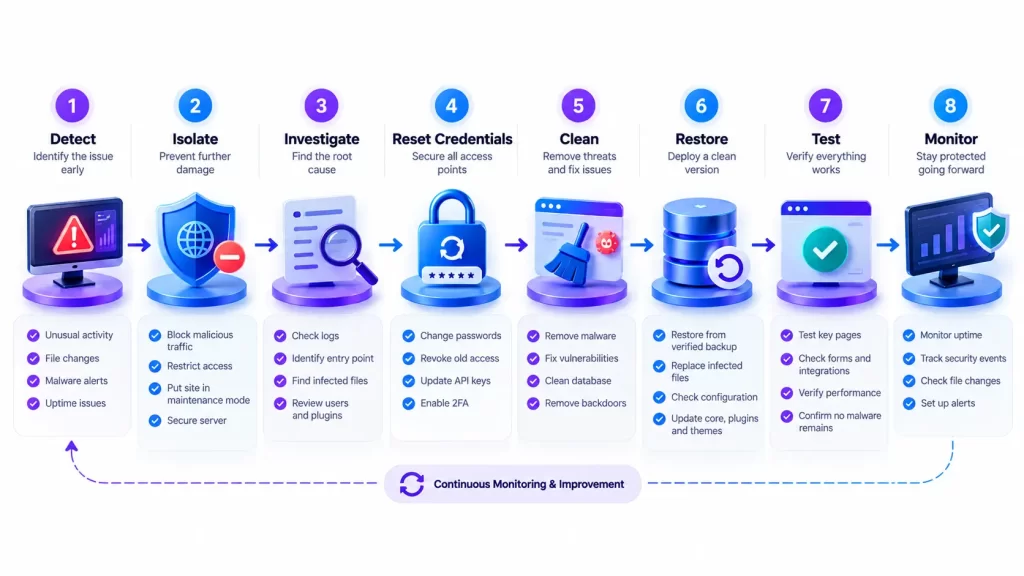
15. Create a Recovery Plan
Ask yourself:
“If this website is hacked tonight, what happens tomorrow morning?”
You should know:
- Who investigates?
- Where are clean backups?
- How do you isolate the website?
- How are compromised credentials reset?
- How are malicious files identified?
- How is the clean version restored?
- How are vulnerabilities fixed?
- How are search-engine issues checked afterward?
Document these steps before you need them.
Practical Example: A Small Business WordPress Website
Imagine a five-page business website with:
- WordPress
- Elementor
- 15 plugins
- Contact Form
- Cloudflare
- Shared hosting
- Three administrators
A reasonable security improvement plan could look like this:
Week 1
- Remove unused plugins.
- Remove unused themes.
- Review administrator accounts.
- Enable 2FA.
- Verify HTTPS.
- Update WordPress and extensions.
Week 2
- Configure WAF rules.
- Set up automated off-site backups.
- Test restoration.
- Review file permissions.
- Check PHP and hosting configuration.
Ongoing
- Review updates.
- Monitor uptime.
- Monitor security events.
- Test forms after important updates.
- Review administrator access.
- Periodically test backups.
The important part is not performing all these tasks once.
It is turning them into a repeatable process.
Common WordPress Security Mistakes to Avoid
“I installed a security plugin, so I’m protected.”
A security plugin is one component of a security strategy.
It doesn’t automatically fix weak passwords, outdated plugins, poor hosting configuration or missing backups.
Keeping unused plugins “just in case”
Unused software creates unnecessary maintenance and security overhead.
If you don’t need it, consider removing it.
Using one administrator account for everyone
Shared accounts make it difficult to identify who performed an action and make access revocation harder.
Never testing backups
A backup notification saying “completed” is not equivalent to a successful restoration test.
Updating production blindly
Updates are necessary, but business-critical sites should have an appropriate backup and testing process.
Blocking everything with aggressive firewall rules
Security controls should protect the website without breaking legitimate traffic, APIs, payment processing, integrations or search-engine access.
Ignoring custom code
A custom plugin or theme can contain vulnerabilities just like third-party software.
WordPress’s developer documentation highlights common risks such as XSS, SQL injection and CSRF for theme development, while OWASP recommends server-side validation, allowlists and secure handling of user input.
Expert Tips and Best Practices
Use a layered security model
Think:
Account → Application → Server → Network → Monitoring → Recovery
No single layer should be expected to do everything.
Minimize the attack surface
Every unnecessary plugin, user account, integration or exposed service adds complexity.
Ask regularly:
“Do we still need this?”
Separate development from production
Test significant changes before deploying them to a revenue-generating website whenever practical.
Document your configuration
Record:
- Hosting provider
- DNS provider
- CDN/WAF
- WordPress version
- PHP version
- Important plugins
- Backup system
- Administrator owners
- Security contacts
- Recovery procedure
Documentation becomes particularly valuable when a developer leaves or an emergency occurs.
Don’t confuse security with secrecy
Changing usernames or hiding technical information can sometimes reduce automated noise, but security should come primarily from proper authentication, authorization, updates, validation and defensive controls.
Review security after major changes
A new plugin, custom integration, payment gateway or membership system can change your security requirements.
Security reviews should happen after significant architectural changes, not just once per year.
A Practical Monthly WordPress Security Routine
For many business websites, a recurring maintenance checklist can be more useful than a one-time security audit.
Weekly
- Check uptime.
- Review critical security alerts.
- Check important forms.
- Review unusual administrator activity.
- Confirm backups are running.
Monthly
- Review plugins and themes.
- Remove unnecessary software.
- Review users and permissions.
- Test selected website functionality.
- Review firewall events.
- Check SSL/HTTPS.
- Review server resources.
- Review Search Console for unexpected security or indexing issues.
Quarterly
- Test backup restoration.
- Review hosting configuration.
- Review administrator access.
- Audit custom code and integrations.
- Review disaster recovery documentation.
The exact frequency should depend on the site’s business risk, traffic, functionality and update frequency.
Frequently Asked Questions
WordPress has an established security team and security development process, but no website platform is automatically secure regardless of how it is configured. WordPress recommends ongoing updates, secure configuration and other hardening practices.
Start with the fundamentals: update WordPress, plugins and themes; use strong unique passwords; enable 2FA; reduce administrator access; configure appropriate firewall protection; maintain tested backups; secure your hosting environment; and monitor the website.
A security plugin can provide useful capabilities such as scanning, firewall rules and monitoring, but it should be part of a broader security strategy. A plugin cannot replace updates, secure authentication, backups, hosting security and responsible maintenance.
Security should be treated as ongoing maintenance rather than a one-time task. Critical updates and alerts should be reviewed promptly, while user access, backups, plugins, configuration and monitoring can be reviewed on a scheduled basis appropriate to the website’s risk.
Yes, indirectly. A compromised site can develop malicious redirects, spam pages or other unauthorized changes. Google specifically documents hacked-site behavior involving deceptive search practices, so security monitoring can form part of broader technical SEO maintenance.
Not automatically. Whether XML-RPC should be disabled or restricted depends on whether your website or integrations require it. WordPress’s current security guidance recommends protecting or disabling XML-RPC when it is not needed rather than treating the setting as universally applicable.
Avoid randomly deleting files or installing multiple cleanup plugins.
First, preserve evidence where possible, restrict further access, take appropriate backups or forensic copies, identify the compromise, rotate credentials, remove the vulnerability, restore from a verified clean backup when appropriate, and inspect the website afterward.
For business-critical websites, professional incident response can reduce the risk of incomplete cleanup.
No security system can realistically promise zero risk. WordPress itself frames security as risk reduction rather than perfect security. The objective is to reduce attack opportunities, detect incidents quickly and maintain a reliable recovery path.
Final Thoughts
WordPress website security is not a checkbox you complete once.
It is a continuous process involving software updates, access control, backups, firewall protection, secure configuration, monitoring and recovery planning.
If you only have time to address seven things today, start here:
- Update WordPress, plugins and themes.
- Remove unnecessary software.
- Review administrator accounts.
- Enable 2FA.
- Verify reliable off-site backups.
- Configure appropriate WAF/firewall protection.
- Document how you would recover the website.
From there, build security into your normal website maintenance cycle.
The goal isn’t to make your website impossible to attack. The goal is to make common attacks harder, reduce the potential impact of a compromise, detect problems earlier and make recovery predictable.
For businesses that depend on WordPress for leads, ecommerce or daily operations, that approach is far more sustainable than waiting for the first security incident.
What Should You Do Next?
Start with a simple audit.
Check your WordPress version, plugin inventory, administrator accounts, backup status, HTTPS configuration, firewall protection and recent security events.
If you discover multiple gaps, address the highest-risk issues first rather than changing everything simultaneously.
For ongoing WordPress maintenance and security, Nizwas IT Solutions provides website maintenance, security monitoring, updates, backups, malware-related support, firewall configuration and related technical services.