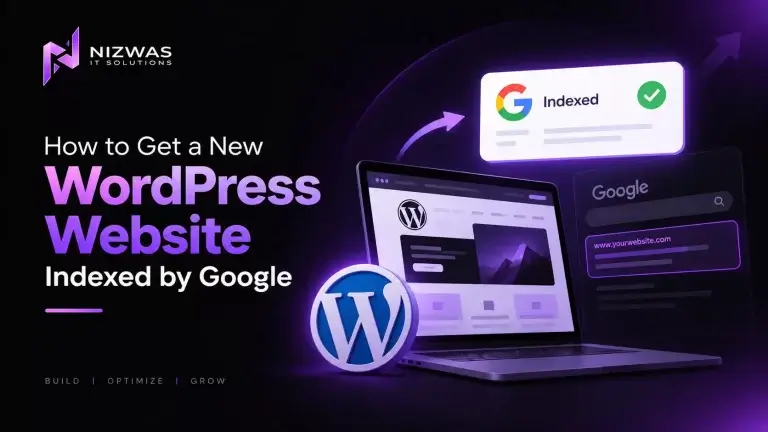
If you have just launched a WordPress website and it isn’t appearing on Google, don’t immediately assume something is broken.
Google has to discover, crawl, understand, and decide whether to index your pages. Google explains these as separate stages of Search, and it does not guarantee that every URL will be crawled or indexed.
For a new WordPress website, start with these steps:
- Verify the website in Google Search Console.
- Make sure WordPress isn’t discouraging search engines.
- Check that important pages aren’t set to
noindex. - Check
robots.txt. - Generate and submit your XML sitemap.
- Inspect your homepage and important pages in Search Console.
- Request indexing for your most important URLs.
- Build internal links between important pages.
- Make sure the pages contain useful, original content.
- Check technical issues such as redirects, canonical URLs, HTTPS and server errors.
- Give Google time to crawl and process the website.
- Monitor Search Console instead of repeatedly submitting the same URLs.
There is no legitimate button that guarantees instant Google indexing. Google specifically says crawling can take days to weeks and that requesting indexing does not guarantee inclusion in Search results.
What Is Google Indexing?
Before trying to get your WordPress website indexed, it helps to understand what “indexing” actually means.
When you publish a website, it doesn’t automatically appear in Google.
Google generally works through three stages:
Crawling → Indexing → Serving search results
During crawling, Googlebot discovers and accesses URLs. During indexing, Google analyzes the content, images, metadata and other signals and decides whether the page should be stored in Google’s index. When someone searches, Google retrieves relevant pages from that index and determines what to show.
That distinction matters.
Your website can be:
Live but not discovered
Google doesn’t know the URL exists yet.
Discovered but not crawled
Google knows about the URL but hasn’t necessarily fetched it.
Crawled but not indexed
Google visited the page but didn’t select it for its index.
Indexed but not ranking well
Google knows the page exists, but it isn’t competitive enough for the searches you’re targeting.
These are different problems and require different solutions.
Who Wrote This Guide?
This guide is published by Nizwas IT Solutions, a web development and SEO-focused digital solutions company working with businesses on WordPress development, technical SEO, website performance and ongoing website maintenance.
Our website development process includes SEO foundations such as site architecture, XML sitemaps, Search Console, Schema markup, internal linking and performance optimization.
For more information, see our Website Design & Development Services.
The goal of this article isn’t to promise that you can “force” Google to index a website. You can’t.
The goal is to show you how to remove the technical and content problems that can prevent Google from discovering, crawling or considering your pages.
What You Will Learn
By the end of this guide, you’ll know:
- How Google discovers a new website
- How to check whether your WordPress site is indexed
- How to set up Google Search Console
- How to submit your XML sitemap
- How to check WordPress search engine visibility
- How to identify accidental
noindexdirectives - How robots.txt affects crawling
- How internal links help Google discover pages
- How canonical URLs affect indexing
- Why a sitemap doesn’t guarantee indexing
- When to use the URL Inspection tool
- How long Google indexing can take
- What to do if your pages remain unindexed
- How to build a better foundation for long-term Google visibility
1. Make Sure Your Website Is Actually Live
Before troubleshooting Google, check the obvious.
Open your website in an incognito/private browser window.
Check:
- The domain resolves correctly.
- HTTPS works.
- The homepage loads without errors.
- Important pages load.
- Navigation works.
- Forms work.
- There are no password restrictions.
- The website isn’t still pointing to a staging environment.
- HTTP redirects to HTTPS correctly.
- The preferred www/non-www version is consistent.
This sounds basic, but new websites frequently go through domain, hosting, DNS and migration changes before launch.
A technically incomplete launch can create an indexing problem before SEO even begins.
If you recently moved an existing website to a new domain or changed URLs, the process is different from launching a completely new site. Google recommends preparing URL mappings, redirects and the new sitemap during site moves.
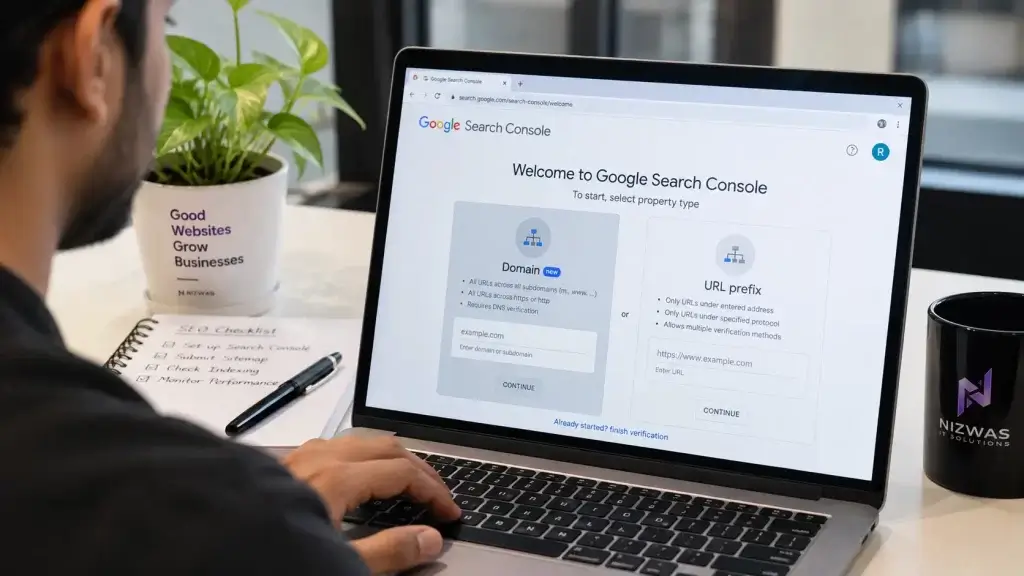
2. Set Up Google Search Console
If you haven’t already, verify your website in Google Search Console.
Search Console is one of the most useful tools for understanding what Google knows about your website.
It can help you investigate:
- URL indexing
- Sitemap processing
- Search queries
- Impressions
- Clicks
- Crawl issues
- Core Web Vitals
- Mobile experience
- Manual actions
- Security issues
For a new website, don’t rely only on searching Google for your company name.
Search Console gives you a much clearer picture of whether Google can access and process specific URLs.
Google recommends using URL Inspection when you want to check individual URLs and request a crawl.
3. Check WordPress Search Engine Visibility
This is one of the first things I check on a newly launched WordPress website.
Go to:
WordPress Dashboard → Settings → Reading
Look for:
Search engine visibility
Make sure:
“Discourage search engines from indexing this site”
is not enabled.
This setting can be particularly easy to overlook when a website has been developed on a staging domain.
A common workflow looks like this:
Development → Staging → Production
During development, someone may intentionally prevent search engines from indexing the website.
The problem occurs when the same setting remains active after launch.
Before doing anything complicated, check it.
4. Check for Accidental noindex
A page can be publicly accessible while still telling search engines not to index it.
Look for:
<meta name="robots" content="noindex">or a similar robots directive.
SEO plugins can also control indexing at the page, post, taxonomy or content-type level.
If you’re using an SEO plugin such as Rank Math or Yoast SEO, review the indexation settings for:
- Pages
- Posts
- Categories
- Tags
- Custom post types
- Author archives
- Other important content types
Don’t blindly make everything indexable.
Some URLs genuinely shouldn’t appear in Google.
The important point is to make sure pages you want to rank aren’t accidentally marked noindex.
Google’s documentation identifies robots meta rules as one of the reasons pages may not be indexed.
5. Check Your Robots.txt File
Open:
yourdomain.com/robots.txt
You want to make sure your robots.txt file isn’t accidentally preventing Googlebot from accessing important parts of your website.
A dangerous example would be:
User-agent: *
Disallow: /
That tells crawlers not to crawl the site.
You might also accidentally block a specific directory containing important content:
User-agent: *
Disallow: /services/
If your most important commercial pages are inside /services/, that’s a serious problem.
But there’s an important distinction:
robots.txt controls crawling.
noindex controls indexing.
Don’t use robots.txt as a replacement for noindex. If Google can’t crawl a page, it may not be able to see the page’s noindex directive in the first place.
Google recommends checking robots.txt when troubleshooting crawling problems.
6. Create and Submit Your XML Sitemap
Your XML sitemap is one of the simplest ways to help Google discover your important URLs.
WordPress can generate a sitemap automatically, and SEO plugins can also generate sitemap indexes.
Depending on your configuration, you may have something like:
https://example.com/wp-sitemap.xmlor:
https://example.com/sitemap_index.xmlDon’t assume that because the sitemap exists, Google has processed it.
Open the sitemap in your browser and make sure it works.
Then go to:
Google Search Console → Sitemaps
Submit the sitemap URL.
Google explains that sitemaps can help search engines discover new or updated pages. For larger sites, a sitemap index can contain multiple sitemap files.
What Should Be in Your Sitemap?
Include important URLs that you want Google to consider for search.
Avoid filling the sitemap with:
- Redirect URLs
- Deleted pages
- Duplicate pages
- Unimportant URLs
- Pages you intentionally set to
noindex - Broken URLs
Google says URLs in a sitemap should generally be the canonical URLs you want considered for Search.
7. Inspect Your Homepage
Now use Google Search Console’s URL Inspection tool.
Enter your homepage.
For example:
https://example.com/Look at Google’s results.
You want to know:
- Can Google access the URL?
- Is indexing allowed?
- Is there a canonical URL?
- Has Google crawled the page?
- Is the URL already indexed?
If your homepage is not indexed, don’t immediately start submitting every page on the website.
Find out why the homepage isn’t being processed first.
8. Request Indexing for Important Pages
If your page is technically ready, you can use URL Inspection to request indexing.
Prioritize your most important URLs:
- Homepage
- Main service pages
- Important product pages
- About page
- Contact page
- Key location pages
- Important articles
Don’t repeatedly press “Request Indexing” every few hours.
Google specifically notes that there is a quota for individual URL submissions and that repeatedly requesting crawling doesn’t make the process happen faster.
Think of the request as:
“Google, this URL is ready. Please consider crawling it.”
It is not:
“Google, index this URL immediately.”
That distinction saves a lot of frustration.
9. Build Internal Links
This is one of the most overlooked parts of launching a new website.
A sitemap tells Google about URLs.
Internal links show how those URLs relate to each other.
For example:
Homepage
→ WordPress Development
→ WordPress SEO
→ Website Speed Optimization
→ Website Maintenance
→ Blog
Then your blog posts can link back to relevant service pages.
Google explains that URLs can be discovered when Google follows links from known pages, and standard crawlable links help with discovery.
This is why publishing an isolated page and simply submitting it to Search Console isn’t always the best approach.
Make important pages part of the website’s architecture.
For example, if you’re publishing an article about WordPress indexing, it could naturally link to your:
WordPress development services
and your technical SEO services.
That creates a useful relationship between educational content and commercial pages.
10. Make Your URLs Simple
Your URL structure matters for both users and search engines.
Compare:
example.com/page?id=83726with:
example.com/wordpress-seo-services/The second URL communicates the subject much more clearly.
Google recommends logical, crawlable URL structures and advises against relying on URL fragments to change page content.
For WordPress, plan your permalink structure before publishing dozens or hundreds of pages.
Good URLs are:
- Descriptive
- Short
- Consistent
- Easy to understand
- Relevant to the page
Don’t change URLs unnecessarily after launch.
11. Check Canonical URLs
Canonical problems can confuse website owners because the page may be technically accessible but Google chooses another URL.
For example, your content might accidentally be available at:
/example/and:
/example/?source=googleor multiple variations of the same content.
Google groups duplicate or substantially similar pages and chooses a canonical URL based on multiple signals. Sitemaps and rel="canonical" can help communicate your preferred version, but Google ultimately makes the decision.
For important pages, check that:
- The canonical points to the intended URL.
- The canonical URL is accessible.
- The URL appears in your sitemap.
- Internal links consistently use the preferred URL.
- Redirects aren’t creating unnecessary chains.
12. Make Sure the Content Deserves to Be Indexed
This is where many “indexing problems” stop being technical problems.
Suppose your website has 20 service pages.
Every page says:
“We provide professional services. Contact us today for quality solutions.”
Google has little reason to treat those pages as valuable, independent resources.
Instead, each page should explain something useful.
For example, a genuine WordPress development service page might discuss:
- What you build
- Who the service is for
- Your development process
- Technologies you use
- Performance considerations
- SEO considerations
- Security practices
- Typical project requirements
- Real examples
- Frequently asked questions
- How customers can get started
Google states that content quality is one factor that can affect whether pages are indexed.
Your goal shouldn’t be:
“How do I make Google index 100 pages?”
It should be:
“Are these 100 pages actually useful enough to deserve separate search visibility?”
That’s a much healthier SEO strategy.
13. Add Real Business Information
New websites have another challenge: trust.
Make it easy for visitors to understand who is behind the website.
Your site should clearly communicate:
- Company name
- About information
- Contact information
- Business services
- Location or service areas where relevant
- Team or author information
- Portfolio/case studies
- Policies
- Customer support information
- Relevant credentials or experience
For example, Nizwas provides an About page explaining the company’s background and work across multiple markets.
If you’re publishing expert advice, identify the author.
Don’t make every article anonymous.
14. Add Structured Data Where It Makes Sense
Schema markup doesn’t guarantee indexing or rankings, but structured data can help Google understand certain types of content.
Depending on the website, you might use structured data for:
- Organization
- Local business
- Article
- Product
- Breadcrumb
- Event
- FAQ where appropriate
- Website
Don’t add irrelevant schema simply because a plugin makes it available.
The markup should accurately represent the content visible on the page.
15. Check Website Speed and Server Reliability
Googlebot needs to access your website.
If the server frequently returns:
- 500 errors
- 502 errors
- 503 errors
- Timeout errors
then crawling can be affected.
Google specifically notes that server problems can influence crawling and that Googlebot may reduce crawling when it detects server issues.
This is particularly important for WordPress websites running on poorly configured hosting.
A fast website is not just about getting a high PageSpeed score.
You also want:
- Stable hosting
- Reliable DNS
- Good server response time
- Proper caching
- Optimized images
- Reasonable plugin usage
- Correct CDN configuration
- Reliable database performance
Nizwas also covers ongoing WordPress maintenance, performance, security, backups and monitoring as part of its website care services.
16. Check Mobile Rendering
Google uses the mobile version of pages for indexing.
Your desktop site can look perfect while the mobile version has:
- Missing content
- Broken navigation
- Hidden headings
- Missing internal links
- Poorly loaded images
- JavaScript rendering problems
Test important pages on a real phone.
Don’t only resize the browser window on your desktop.
Google also renders JavaScript when processing pages, but JavaScript-dependent content still needs to be implemented in a way that search engines can access and understand.
17. Don’t Confuse Indexing With Ranking
This is probably the biggest misunderstanding new website owners have.
Imagine you publish:
“Best WordPress Development Company in New York”
You search Google and don’t see your page.
That doesn’t necessarily mean your page isn’t indexed.
It could simply be ranking at position 80.
Instead, inspect the URL in Search Console.
There are three questions:
Is Google aware of the URL?
Is Google indexing the URL?
Is Google ranking the URL for useful queries?
Only after you answer the first two should you spend serious time analyzing rankings.
This distinction is also why searching site:example.com can be useful as a rough check, but Search Console should be your primary diagnostic tool.
18. How Long Does Google Take to Index a New Website?
There isn’t a fixed answer.
Google says crawling can take a few days to a few weeks, and it doesn’t guarantee that requesting indexing will result in immediate inclusion—or inclusion at all.
A brand-new domain may need patience.
An established website with strong internal links and existing authority may have a very different crawl pattern.
That’s why you shouldn’t promise a client:
“Your website will be indexed within 24 hours.”
A more honest statement is:
“We’ll make sure the website is technically accessible, submit the sitemap, connect Search Console and request crawling for important URLs. Google then decides when and whether to crawl and index the pages.”
That’s both more accurate and more professional.
19. What If Google Says “Crawled – Currently Not Indexed”?
This status is important.
It generally means Google has crawled the URL but hasn’t included it in the index at that point.
Don’t respond by repeatedly requesting indexing.
Review the page.
Ask:
- Is the content original?
- Is it genuinely useful?
- Is it too short?
- Is it similar to another page?
- Does another URL better represent the same content?
- Is the canonical correct?
- Does the page have internal links?
- Is it targeting a real search intent?
- Is the page actually necessary?
Improve the underlying page before requesting another crawl.
Google notes that not every crawled page is necessarily indexed and that quality and duplicate-content considerations can affect indexing.
20. What If Google Says “Discovered – Currently Not Indexed”?
This means Google knows about the URL but hasn’t necessarily crawled it yet.
Check:
- Sitemap
- Internal links
- Robots.txt
- Server reliability
- Crawl accessibility
- Site architecture
If you have 5,000 pages and most are almost identical, don’t immediately assume you need to force Google to crawl all 5,000.
Improve the site’s architecture and decide which pages actually deserve search visibility.
For large websites, efficient crawling becomes increasingly important. Google recommends updating sitemaps, checking robots.txt and ensuring the server can handle crawling.
21. A Simple New WordPress Indexing Checklist
Before launching, run through this checklist:
Technical
- Website loads on HTTPS
- DNS is correct
- No staging password remains
- WordPress search engine visibility is enabled
- Important pages are indexable
- Robots.txt isn’t blocking important content
- XML sitemap works
- Canonicals are correct
- URLs return the correct status codes
- No major redirect chains
- Server responds reliably
- Mobile version works
- Search Console property verified
- Sitemap submitted
- Homepage inspected
- Important service pages inspected
- Important pages requested for indexing where appropriate
- Page indexing report reviewed
- Security issues checked
Content
- Homepage explains the business
- Service pages are unique
- Important pages have internal links
- Titles are descriptive
- Meta descriptions are useful
- Headings are structured logically
- Images have appropriate alt text
- Content satisfies search intent
- Author/business information is clear
22. The Best Way to Think About Google Indexing
Don’t think of indexing as a switch.
It’s more like opening a new store.
Publishing the website is putting the sign outside.
The sitemap is giving Google a map.
Internal links are the roads connecting your pages.
Search Console is your diagnostic dashboard.
Technical SEO makes sure Google can enter the building.
Good content gives Google a reason to keep the information.
And authority helps determine whether your pages deserve visibility for competitive searches.
Google itself says there is no payment that makes it crawl a website more frequently or rank it higher, and there is no guarantee that a page will be crawled, indexed or served in Search.
That’s why sustainable SEO is about removing obstacles and building something genuinely useful—not trying to find a shortcut around Google’s systems.
What Should You Do Next?
If you’ve just launched a WordPress website, don’t spend the next week repeatedly clicking Request Indexing.
Follow this order instead:
Day 1
Set up Search Console.
Check WordPress visibility.
Check robots.txt.
Check noindex.
Check your sitemap.
Then
Submit the sitemap.
Inspect the homepage.
Inspect your main service pages.
Request indexing for the most important URLs.
Next
Build internal links.
Improve thin pages.
Add useful original content.
Check technical performance.
Then
Monitor Search Console.
Look at indexing status.
Look at impressions and queries once data becomes available.
Fix problems based on evidence rather than guessing.
If your website is struggling with technical indexing, crawlability, redirects, canonical URLs, XML sitemaps or WordPress SEO configuration, a technical SEO audit can identify issues that aren’t obvious from the front end. Nizwas’ Technical SEO services cover crawling, indexing, sitemaps, robots.txt, canonical URLs, internal linking and related technical issues.
Frequently Asked Questions
Verify the website in Google Search Console, make sure WordPress isn’t discouraging search engines, check for noindex directives, verify robots.txt, submit the XML sitemap, create internal links and request indexing for important URLs. Google then determines when and whether to crawl and index the pages.
There is no guaranteed timeframe. Google says crawling can take anywhere from a few days to a few weeks, and requesting indexing doesn’t guarantee immediate inclusion in Search.
Possible causes include a new domain that Google hasn’t discovered yet, an accidental noindex, robots.txt blocking, sitemap problems, canonical issues, server errors, duplicate or low-value content, or the website being indexed but ranking too low to appear for your chosen search.
No. A sitemap helps Google discover URLs, but it doesn’t guarantee that Google will crawl or index every URL in it.
No. Prioritize important pages and fix technical or content problems first. Google limits individual indexing requests, and repeatedly submitting the same URL doesn’t make Google crawl it faster.
WordPress can generate an XML sitemap, and modern WordPress installations provide built-in search-engine-related functionality. However, you should still verify your website in Google Search Console and submit or confirm the appropriate sitemap.
Robots.txt primarily controls crawling, not indexing. If you need a page excluded from Google’s index, use an appropriate noindex directive while ensuring Google can crawl the page to see that directive.
It means Google has crawled the URL but hasn’t included it in the index at that point. Review the page’s content quality, duplication, canonical, internal linking and search usefulness before simply requesting another crawl.
It means Google knows about the URL but hasn’t necessarily crawled it yet. Check your sitemap, internal links, crawl restrictions and server reliability.
No. Google says it doesn’t accept payment to crawl a site more frequently or rank it higher.
No. Indexing and ranking are different. A page must generally be indexed before it can receive organic visibility, but being indexed doesn’t guarantee a high position for competitive keywords.
Not necessarily. Start with the technical checklist above and Search Console. If important pages remain unindexed after you’ve confirmed the site is accessible, indexable and technically healthy, a technical SEO audit can help identify deeper problems.