Your WordPress website was working normally yesterday.
Today, you open the site and see:
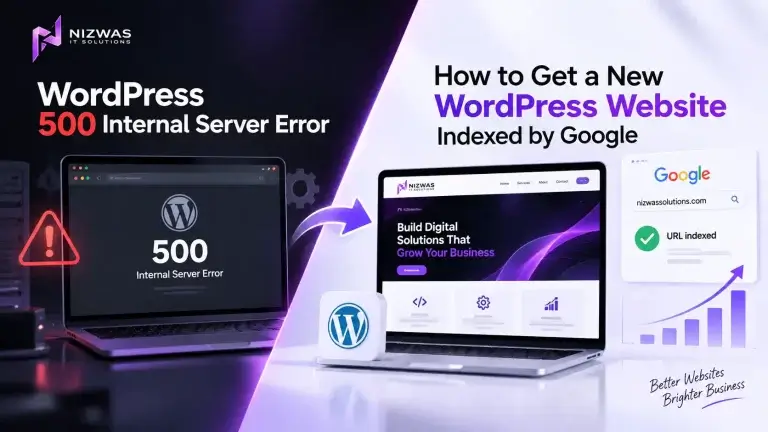
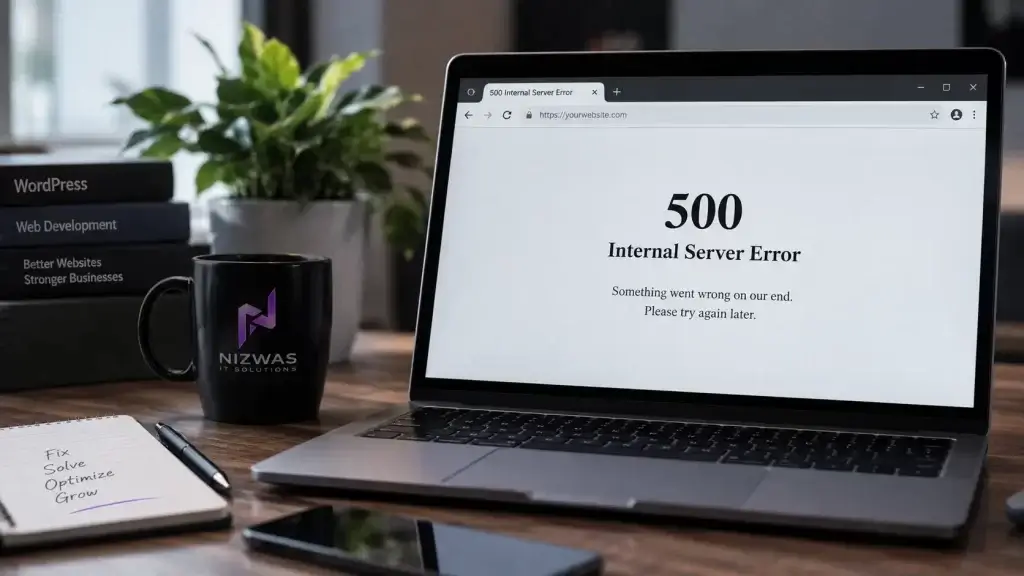
500 Internal Server Error
Or perhaps:
HTTP Error 500
Or a completely blank page.
There is no useful explanation. No plugin name. No PHP error. No obvious clue.
That’s what makes the WordPress 500 Internal Server Error particularly frustrating.
The good news is that the error is usually recoverable.
The important part is not to start randomly changing plugins, deleting files, or modifying server settings.
You need to find what caused the server to fail.
This guide walks through the most common causes and shows you how to troubleshoot them safely, including situations where you cannot access the WordPress dashboard.
Who Wrote This Guide?
Written by the Nizwas IT Solutions technical team
Nizwas works with WordPress development, website performance, technical SEO, troubleshooting, maintenance, security, and website migrations.
Our approach is simple: diagnose the underlying problem first, then make the smallest practical change needed to resolve it.
For broader WordPress development and technical support, you can also explore our WordPress website development services.
What You Will Learn
By the end of this guide, you’ll know how to:
- Understand what a WordPress 500 error actually means
- Identify the most common causes
- Check WordPress debug logs
- Test plugins and themes
- Repair a damaged
.htaccessfile - Check PHP memory problems
- Identify PHP compatibility issues
- Check file permissions
- Replace damaged WordPress core files
- Know when the problem is actually related to your hosting provider
- Prevent the same problem from happening again
Quick Diagnosis: What Usually Causes a WordPress 500 Error?
Before getting into the detailed fixes, here’s a quick overview.
| Possible cause | Typical situation |
|---|---|
| Plugin conflict | Error appears after installing/updating a plugin |
| Theme problem | Error appears after theme changes |
| PHP fatal error | Blank page or server error after code changes |
.htaccess problem | Error after migration or permalink changes |
| PHP memory limit | Error during heavy operations |
| PHP version incompatibility | Error after changing PHP versions |
| File permissions | Files cannot be accessed correctly |
| Corrupted WordPress files | Error after failed update |
| Server configuration | Error persists despite WordPress troubleshooting |
| Hosting resource limits | Error appears during traffic or resource spikes |
A 500 status is deliberately generic. The server encountered an unexpected condition, but the response itself doesn’t tell you the exact cause.
That’s why diagnosis comes before repair.
What Is a WordPress 500 Internal Server Error?
A WordPress 500 Internal Server Error is a server-side error that means the server could not successfully complete the request.
It isn’t the same as a 404.
A 404 generally means the requested resource wasn’t found.
A 500 means something went wrong while the server was trying to process the request.
In a typical WordPress request, several components are involved:
Browser → Web server → PHP → WordPress → Theme/Plugins → Database
A failure anywhere in that chain can potentially result in a 500 response.
For example, a plugin might call a PHP function that no longer exists.
A theme could contain invalid PHP.
A server could run out of memory.
An .htaccess rule could be malformed.
A WordPress update could leave files incomplete.
The browser sees the same general result:
500 Internal Server Error
But the underlying causes can be completely different.
Before You Fix Anything: Take a Backup
This step is easy to skip when your website is down.
Don’t.
If you have access to your hosting control panel, create a backup of:
- WordPress files
- Database
wp-contentwp-config.php.htaccess
WordPress’s own debugging documentation recommends working from a backup or staging environment before making modifications.
If your hosting provider has automatic backups, verify that a recent backup actually exists.
A backup gives you something valuable during troubleshooting:
A way back.
Fix 1: Check the WordPress Debug Log
If you want the fastest route to the real cause, don’t guess.
Check the error log.
WordPress provides built-in debugging functionality through WP_DEBUG, WP_DEBUG_LOG, and WP_DEBUG_DISPLAY. When configured correctly, errors can be written to wp-content/debug.log while being hidden from visitors.
Open your wp-config.php file and check the debugging configuration.
For temporary troubleshooting, you can use:
define( 'WP_DEBUG', true );
define( 'WP_DEBUG_LOG', true );
define( 'WP_DEBUG_DISPLAY', false );
These should be placed before the line that says:
/* That's all, stop editing! Happy publishing. */Then load the page that produces the error.
Afterward, check:
/wp-content/debug.logLook at the most recent entries.
You may see something like:
PHP Fatal errorfollowed by:
/wp-content/plugins/example-plugin/...That immediately gives you a direction.
If the log points to a plugin, investigate that plugin.
If it points to the theme, investigate the theme.
If it points to memory exhaustion, investigate PHP memory.
If there is no WordPress log, check your hosting/server error log as well.
WordPress’s official documentation explains that WP_DEBUG_LOG saves errors to debug.log, while WP_DEBUG_DISPLAY controls whether errors are shown directly in the page output.
Important: Don’t leave debugging enabled unnecessarily on a production website. After troubleshooting, return the settings to their normal production configuration.
Fix 2: Disable Plugins and Find the Conflict
Plugin conflicts are one of the first things to investigate when a WordPress 500 Internal Server Error appears suddenly.
Think about what happened immediately before the error.
Did you:
- install a plugin?
- update a plugin?
- update WordPress?
- update PHP?
- activate an add-on?
- change caching settings?
If yes, start there.
If You Can Access WordPress Admin
Go to:
Plugins → Installed Plugins
Deactivate the plugins.
If the website starts working, reactivate them one at a time.
The goal isn’t simply to disable everything permanently.
The goal is to identify the plugin responsible.
WordPress’s Health Check troubleshooting system can also help isolate plugin and theme conflicts without affecting what other visitors see on the live website.
If You Cannot Access WordPress Admin
Use your hosting File Manager, FTP, or another secure file-access method.
Go to:
/wp-content/Rename:
pluginsto:
plugins-disabledThen test the website.
If the website starts working, WordPress is no longer loading the plugins.
Rename the directory back to:
pluginsThen identify the problematic plugin by enabling them systematically.
Don’t simply delete plugins while troubleshooting.
Disable first. Investigate second. Delete only when you’re sure.
Fix 3: Repair the .htaccess File
A damaged .htaccess file can cause a WordPress 500 Internal Server Error, particularly after migrations, redirects, permalink changes, or plugin configuration changes.
WordPress uses .htaccess with Apache to handle rewrite rules and pretty permalinks.
First, make a backup copy.
Then rename:
.htaccessto:
.htaccess-backupRefresh the website.
If the website starts working, you’ve identified the likely cause.
If you can access WordPress Admin, go to:
Settings → Permalinks
You don’t necessarily need to change the permalink structure.
Simply saving the settings can cause WordPress to regenerate its rewrite rules.
WordPress’s own documentation recommends resetting permalinks and checking .htaccess when rewrite-related problems occur.
Important
Don’t blindly copy .htaccess code from random websites.
Your server configuration may differ.
Apache, Nginx, IIS, caching layers, security rules, redirects, and hosting configurations can all affect how rewrite rules should be handled.
If you’re using Nginx rather than Apache, .htaccess isn’t the same solution because Nginx doesn’t use .htaccess for directory-level configuration.
Fix 4: Check PHP Memory and Resource Limits
Another common cause of a WordPress 500 Internal Server Error is PHP running out of memory.
This can happen when:
- a plugin performs a heavy operation
- an image-processing task requires significant memory
- Elementor or another builder loads a complex page
- WooCommerce processes a large request
- an import/export runs
- several plugins perform expensive operations at once
- the hosting environment imposes strict resource limits
The error log may contain a message similar to:
Allowed memory size exhaustedThat’s much more useful than the 500 message itself.
The important point is that increasing memory isn’t always the complete solution.
If a plugin suddenly consumes excessive memory, giving PHP more memory may only hide the underlying problem temporarily.
Check:
- PHP memory limit
- PHP max execution time
- hosting RAM/resource limits
- CPU usage
- problematic plugins
- large database operations
If the hosting account imposes a hard limit, changing WordPress settings alone may not increase the actual resources available to the site.
That’s when your hosting provider needs to be involved.
Fix 5: Check Your PHP Version
WordPress depends heavily on PHP.
Your website can work perfectly for months and then fail after a PHP version change because a theme or plugin isn’t compatible with the new environment.
This is especially relevant after:
- hosting migration
- PHP upgrade
- server migration
- changing PHP handlers
- restoring an old website
- updating an older plugin
Don’t assume that “newer PHP” automatically means “everything will work.”
You need compatibility between:
WordPress + Theme + Plugins + PHP + Server
PHP maintains an official supported-version schedule. As of September 2026, PHP 8.3, 8.4 and 8.5 remain within supported branches, while older branches such as PHP 8.1 have reached end of life.
If the error appeared immediately after a PHP upgrade, review the error logs before making additional changes.
A temporary rollback may help confirm the cause, but the long-term solution should be making the website compatible with a supported PHP version.
Fix 6: Check WordPress Core Files
Sometimes the problem isn’t a plugin or theme.
A WordPress core file may have been damaged or incompletely updated.
This can happen after:
- interrupted updates
- failed migrations
- incorrect file transfers
- manual file changes
- server problems
If you can access the WordPress dashboard, check:
Dashboard → Updates
If WordPress reports that files need attention, reinstalling the current WordPress version can replace core files.
WordPress’s official update documentation explains how to replace core files while preserving wp-content and configuration.
Be careful
Don’t randomly delete the WordPress installation.
Your website contains more than WordPress core.
Your:
wp-contentdirectory contains themes, plugins and uploaded media.
Your:
wp-config.phpcontains important database and configuration information.
A careless reinstall can turn a recoverable problem into a much larger one.
Fix 7: Check File Permissions and Server Configuration
If you’ve already ruled out plugins, themes, PHP problems, .htaccess, and core files, start looking at the server.
Incorrect permissions can prevent WordPress or PHP from reading required files.
WordPress provides official guidance for file permissions and server configuration.
You should also investigate:
- PHP-FPM errors
- Apache error logs
- Nginx error logs
- hosting resource limits
- ModSecurity rules
- server configuration
- firewall rules
- CDN/proxy behavior
- database connectivity
- recent server migrations
- SSL configuration
This is where many website owners reach the limit of what they can safely troubleshoot from WordPress itself.
If the server is rejecting the request before WordPress even executes, changing WordPress plugins won’t solve it.
What If the 500 Error Appeared After a Website Migration?
Migration-related 500 errors deserve special attention.
If the website worked on the old server but stopped working immediately after migration, compare:
Old environment vs. new environment
Check:
- PHP version
- PHP extensions
- database credentials
- database server
- file ownership
- file permissions
.htaccess- server configuration
- domain configuration
- DNS
- SSL
- rewrite rules
- absolute paths
- caching
- CDN configuration
WordPress’s migration documentation specifically notes that moving a WordPress installation can require changes to URLs, .htaccess, database settings and server configuration.
This is why a WordPress migration isn’t simply:
Copy files → copy database → done.
The environment matters.
If your website has recently moved hosting, our WordPress migration and development services can be relevant when the problem involves the application, configuration, or deployment rather than simply DNS.
What If the 500 Error Appears Only on One Page?
This is an important clue.
If:
Homepage works
but:
/services/ works
and:
/contact/ works
while one specific page returns 500, the problem may be localized.
Investigate:
- page-specific plugins
- shortcodes
- custom PHP
- dynamic queries
- Elementor widgets
- API requests
- forms
- database queries
- template files
If the whole website is down, think more broadly about:
- server configuration
- PHP
- plugins
- theme
.htaccess- WordPress core
- hosting resources
The scope of the failure is itself useful diagnostic information.
What If Only WordPress Admin Shows the 500 Error?
If the front end works but:
/wp-admin/returns a 500 error, don’t immediately assume the whole WordPress installation is broken.
Investigate:
- admin-specific plugins
- PHP memory
- security plugins
- authentication-related code
- custom admin hooks
- server rules
- PHP errors
Again, check the logs first.
A targeted error is usually easier to diagnose than a site-wide failure.
Don’t Keep Changing Things Randomly
This is perhaps the most important troubleshooting advice in this article.
Imagine you have a 500 error.
You:
- disable plugins
- change PHP
- delete
.htaccess - install another plugin
- modify memory
- change the theme
- clear CDN
- reinstall WordPress
Now the site works.
But you don’t know why.
That’s a problem.
You may have fixed one issue while creating another.
A better process is:
Backup → Reproduce → Check logs → Identify likely cause → Make one controlled change → Test → Document the result
This makes troubleshooting much faster and safer.
How to Prevent WordPress 500 Errors
You can’t guarantee that a website will never experience a server error.
You can, however, reduce the likelihood and make recovery much easier.
Keep WordPress Updated
Use supported WordPress releases and keep your plugins and themes maintained.
Test Major Changes
If possible, test plugin, theme, PHP, and code changes on staging before applying them to production.
Keep Reliable Backups
A backup that has never been tested isn’t much of a recovery strategy.
Periodically verify that restoration actually works.
Monitor Your Website
Uptime monitoring can tell you that something has gone wrong before a customer sends you a message.
Review Plugins
Don’t keep unnecessary plugins installed indefinitely.
Every additional component can introduce compatibility, security, maintenance, or performance considerations.
Maintain PHP
Don’t allow a website to remain on an unsupported PHP branch indefinitely. PHP’s official support schedule makes it clear when branches reach end of life.
Maintain Server and Security Configuration
A website needs more than WordPress updates.
Your hosting environment, SSL, CDN, firewall, backups, database and server configuration all matter.
Nizwas also provides WordPress website maintenance and security covering updates, backups, security checks, troubleshooting, performance and ongoing website care.
A Simple WordPress 500 Error Checklist
If you’re staring at a 500 page right now, follow this order:
1. Create a backup
2. Check the WordPress/server error log
3. Identify the latest change
4. Test plugins
5. Test the active theme
6. Check .htaccess
7. Check PHP memory
8. Check PHP compatibility
9. Check WordPress core files
10. Check file permissions
11. Check hosting/server logs
12. Test again
Don’t perform every step automatically.
Stop when you find the cause.
When Should You Ask a WordPress Developer for Help?
If you’re comfortable working with WordPress files and hosting, many 500 errors can be diagnosed yourself.
But there are situations where professional help makes sense.
For example:
- the website generates revenue
- the website is completely down
- you don’t have a backup
- you don’t have hosting access
- the error involves custom PHP
- the database is involved
- the server configuration is unfamiliar
- the site recently migrated
- the problem keeps returning
- you suspect malware
- the website uses WooCommerce
- multiple systems depend on the website
In those situations, the cost of experimenting on a live website can be higher than the cost of getting the problem diagnosed correctly.
Nizwas provides website troubleshooting, development and technical support for businesses dealing with WordPress performance, technical problems, maintenance and website improvements.
Final Thoughts
A WordPress 500 Internal Server Error looks serious because the browser gives you almost no useful information.
But the error itself is not the diagnosis.
It’s a symptom.
The real cause might be a plugin, theme, PHP version, memory limit, .htaccess rule, damaged WordPress file, permission problem, or server configuration.
The fastest way forward is therefore not to start changing everything.
Start with the evidence.
Check the logs.
Find the last change.
Isolate the problem.
Make one controlled fix.
Then test the website again.
If you regularly maintain a business website, don’t wait until the site goes down to think about backups, monitoring, updates and technical maintenance.
A properly maintained WordPress website is much easier to troubleshoot when something eventually goes wrong.
Frequently Asked Questions
A WordPress 500 Internal Server Error is a generic server-side error indicating that the server couldn’t successfully process a request. The actual cause can be a plugin, theme, PHP error, memory limit, .htaccess problem, corrupted file, permission issue, or server configuration.
Start by creating a backup and checking the WordPress or server error log. Then investigate plugins, themes, .htaccess, PHP memory, PHP compatibility, WordPress core files, permissions and server configuration.
A sudden error often follows a recent change such as a plugin update, theme change, PHP update, WordPress update, migration, server change or configuration modification. Check what changed immediately before the problem appeared.
Yes. A plugin can cause a 500 error through a PHP fatal error, compatibility problem, resource exhaustion, coding issue or conflict with another plugin or the active theme.
You can troubleshoot through your hosting File Manager, FTP or another secure server-access method. Common tests include checking server logs, temporarily disabling plugins, reviewing .htaccess, checking PHP configuration and investigating server-level errors.
Yes. A malformed or incompatible .htaccess rule can prevent the server from processing requests correctly. WordPress uses .htaccess with Apache for rewrite rules and pretty permalinks.
Yes. PHP can return a fatal error when a process exceeds its available memory. Check the PHP error log for messages indicating that the allowed memory size has been exhausted.
Yes. A plugin or theme may not be compatible with a particular PHP version. If the 500 error appeared immediately after a PHP change, review the PHP error log and compatibility of your WordPress components.
Not immediately. Reinstalling WordPress should generally come after investigating logs, plugins, themes, PHP, .htaccess and other likely causes. If core files are damaged, WordPress provides an official process for replacing the core files.
Use reliable backups, staging for major changes, supported PHP versions, maintained plugins and themes, security monitoring, uptime monitoring and regular WordPress maintenance.