A slow WordPress website can quietly cost your business visitors, enquiries, sales, and customer trust.
You may have a beautiful design, strong content, competitive pricing, and excellent services, but if visitors have to wait several seconds for a page to become usable, many will never experience those strengths.
Website speed also matters for search visibility. Google recommends achieving good Core Web Vitals and confirms that its ranking systems consider signals related to page experience. However, speed should not be treated as a shortcut to rankings—Google still prioritizes useful and relevant content.
The good news is that WordPress itself doesn’t have to be slow.
A properly configured WordPress website can be extremely fast. Problems usually appear because of hosting limitations, heavy themes, poorly configured plugins, oversized images, unnecessary JavaScript, database overhead, third-party scripts, or incorrect caching.
In this complete 2026 WordPress speed optimization guide, we’ll show you how to identify those problems and fix them systematically.
You’ll learn how to:
- Test your WordPress website correctly
- Understand Core Web Vitals
- Improve LCP, INP, and CLS
- Choose better hosting
- Configure WordPress caching
- Optimize images
- Reduce CSS and JavaScript
- Identify slow plugins
- Optimize Elementor websites
- Clean your WordPress database
- Use a CDN correctly
- Improve mobile performance
- Avoid common optimization mistakes
- Maintain performance after optimization
Whether your website is a small company site, WordPress blog, Elementor website, or WooCommerce store, these principles can help you build a faster experience.
Part 1: Understand Why Your WordPress Website Is Slow
Why Does WordPress Website Speed Matter?
Speed isn’t simply about getting a green score in PageSpeed Insights.
It affects the experience of almost every visitor.
Imagine searching Google for a local service.
You open one result.
The logo appears, but the main content doesn’t. You wait. Then the hero section suddenly moves because another element loads above it. You try tapping the menu, but nothing happens immediately.
Most people aren’t going to diagnose the technical issue.
They simply think:
“This website is slow.”
Then they leave.
For a business website, that lost visitor could have been a potential customer.
Performance therefore affects much more than SEO.
It influences:
User experience
Conversions
Engagement
Lead generation
eCommerce sales
Brand perception
Advertising efficiency
If you’re paying for Google Ads, Meta Ads, or other PPC traffic, performance becomes even more important. Every paid visitor sent to a slow landing page represents traffic you’ve already paid to acquire.
What Are Core Web Vitals?
Before optimizing WordPress, you need to understand what you’re measuring.
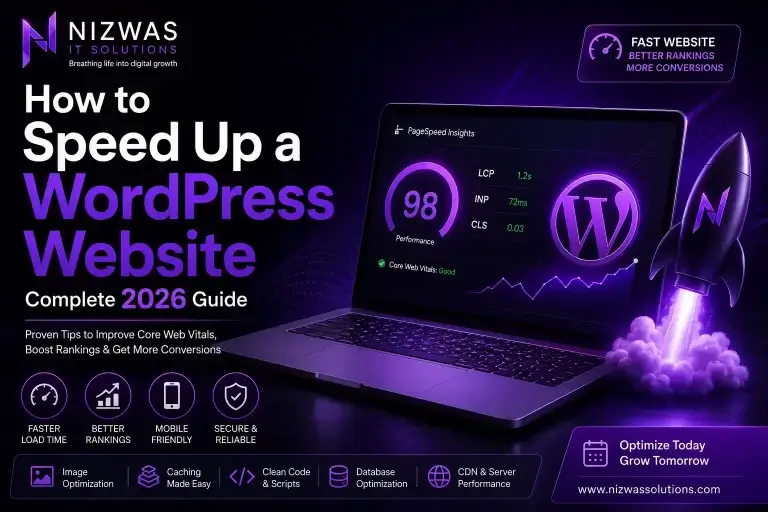
Google’s current Core Web Vitals consist of three primary metrics:
| Metric | Measures | Good Target |
|---|---|---|
| LCP | Loading performance | ≤ 2.5 seconds |
| INP | Interaction responsiveness | ≤ 200 ms |
| CLS | Visual stability | ≤ 0.1 |
Google recommends evaluating these targets at the 75th percentile of page loads, segmented across mobile and desktop where appropriate.
Largest Contentful Paint (LCP)
LCP measures how quickly the largest meaningful visible content element appears.
On many WordPress websites, this could be:
A hero image
Large heading
Banner
Featured image
Background visual
If your hero section contains a huge unoptimized image, LCP may suffer.
A good target is 2.5 seconds or less.
Interaction to Next Paint (INP)
INP measures responsiveness.
In simple terms:
How quickly does the website visually respond after someone interacts with it?
Examples include:
Opening navigation
Clicking buttons
Selecting product options
Opening accordions
Interacting with filters
Heavy JavaScript and long-running browser tasks are common causes of poor responsiveness.
A good INP is 200 milliseconds or less.
Cumulative Layout Shift (CLS)
Have you ever tried clicking a button and suddenly the page moved?
That’s the kind of experience CLS helps measure.
Common causes include:
Images without dimensions
Late-loading advertisements
Dynamic banners
Fonts changing after loading
Popups inserting content
Third-party widgets
A good CLS score is 0.1 or less.
How to Test WordPress Website Speed
Don’t start installing optimization plugins immediately.
Test first. Optimize second. Test again.
Otherwise, you don’t know whether your changes actually helped.
Google PageSpeed Insights
PageSpeed Insights is one of the first tools you should use.
Test important URLs individually, including your:
Homepage
Main service page
Blog article
Landing page
Product page
Shop/category page
Checkout page
Don’t obsess over getting 100/100.
Google itself cautions that excellent Core Web Vitals or third-party performance scores don’t guarantee top rankings. Performance is part of a broader page experience.
Instead, identify the actual bottlenecks.
Look for issues such as:
Large images
Render-blocking resources
Unused JavaScript
Unused CSS
Slow server response
Long main-thread tasks
Poor LCP
Layout shifts
Google Search Console
PageSpeed Insights is excellent for individual pages.
Search Console helps you understand Core Web Vitals across groups of real URLs.
This distinction matters.
Your homepage may perform beautifully while hundreds of blog posts or product pages have problems.
Google specifically recommends using Search Console’s Core Web Vitals report to understand website performance at scale.
Part 2: 15 Ways to Speed Up a WordPress Website in 2026
1. Start With Quality WordPress Hosting
You can optimize images, minify CSS, delay JavaScript and install caching plugins.
But if the server is consistently slow, you’re working against a weak foundation.
Hosting affects:
Server response time
PHP execution
Database performance
Traffic capacity
Caching capabilities
Available CPU/RAM
Reliability
WordPress’s own performance documentation identifies hosting/server configuration as a major performance factor.
For business websites, don’t choose hosting based only on the lowest monthly price.
Evaluate:
Server resources
Data-center locations
PHP support
Object caching
Server-level caching
CDN integration
Security
Backup systems
Scalability
A small brochure website and a WooCommerce store with thousands of products don’t have the same hosting requirements.
What about TTFB?
Time to First Byte is the time between requesting a page and receiving the first byte from the server.
Poor TTFB can indicate issues involving:
Slow hosting
Uncached pages
Database queries
Heavy plugins
External API calls
Server configuration
If the server takes too long to begin responding, frontend optimization alone won’t solve everything.
2. Keep WordPress, PHP, Themes and Plugins Updated
Outdated software isn’t only a security concern.
Updates can include:
Performance improvements
Compatibility changes
Bug fixes
Database improvements
Modern PHP support
WordPress’s optimization guidance recommends maintaining current software versions because upgrades frequently include bug fixes and performance enhancements.
Before major updates, however:
Create a backup.
And ideally test significant changes on staging first.
3. Use a Lightweight WordPress Theme
Your theme controls a substantial amount of frontend output.
A visually impressive theme can still be poorly optimized.
Watch for themes that load:
Huge CSS files
Large JavaScript bundles
Multiple icon libraries
Sliders
Animation libraries
Unused WooCommerce code
Multiple fonts
Features you never use
Your website shouldn’t load resources for functionality that doesn’t exist on the current page.
WordPress’s official optimization guidance specifically notes that theme choice can significantly affect performance.
When choosing a theme, prioritize:
Clean code
Responsive design
Accessibility
Limited dependencies
Active development
Compatibility
Performance
If your business requires extensive customization, a lightweight custom WordPress theme may be worth considering.
Nizwas provides WordPress and custom website development as part of its website development services.
4. Audit Your WordPress Plugins
You’ve probably heard:
“Never install more than 20 plugins.”
That’s too simplistic.
The number alone doesn’t determine performance.
Ten badly coded plugins could create more problems than 30 efficient ones.
Instead, ask:
What does this plugin do?
Does another plugin already provide the same functionality?
Does it load assets on every page?
Does it create excessive database queries?
Is it actively maintained?
Do we still need it?
WordPress recommends deactivating and deleting unnecessary plugins and selectively testing plugins to identify those affecting server performance.
Common plugin duplication
You may discover:
Two SEO plugins
Multiple security plugins
Multiple analytics integrations
Several image optimization tools
Duplicate caching functionality
Old page-builder add-ons
Remove unnecessary duplication.
But don’t blindly disable plugins on a production website. Test important functionality after every significant change.
5. Configure WordPress Caching Correctly
Caching is one of the most effective WordPress performance improvements.
Normally, WordPress may need to:
Process PHP
Run database queries
Build the page
Return HTML
Caching can allow previously generated content to be served much more efficiently.
WordPress’s official documentation describes caching as one of the fastest ways to improve performance because cached static files can reduce server processing requirements.
Several caching layers may be involved:
Page caching – stores generated pages.
Browser caching – lets browsers reuse static assets.
Object caching – reduces repeated database operations.
Server caching – handles caching at infrastructure level.
CDN caching – serves eligible resources closer to users.
Popular WordPress performance solutions include tools such as WP Rocket, while many managed hosting providers provide server-level caching.
But don’t stack caching systems without understanding them.
Running multiple plugins performing the same optimization can cause:
Broken layouts
Cache conflicts
Old content appearing
JavaScript issues
WooCommerce problems
One carefully configured optimization system is usually better than several overlapping plugins.
6. Optimize WordPress Images
Images are one of the biggest opportunities on many WordPress websites.
Suppose your homepage contains:
A 2 MB hero image
Four 800 KB service images
Three 500 KB portfolio images
You’ve already added several megabytes before considering CSS, JavaScript, fonts or tracking scripts.
Resize before uploading
Don’t upload a 5000px photograph if the website displays it at 900px.
Use appropriate dimensions.
Compress images
Compression reduces file size while maintaining acceptable visual quality.
Use modern image formats
Where appropriate, use:
WebP
AVIF
These formats can significantly reduce file size compared with unnecessarily large PNG/JPEG files, depending on the image.
Lazy-load below-the-fold images
Images that aren’t immediately visible don’t always need to load at once.
Lazy loading lets the browser postpone them until they’re closer to the viewport.
However:
Don’t automatically lazy-load your LCP image.
Your primary hero image often needs to be discovered and loaded quickly.
Set image dimensions
Correct width and height information helps browsers reserve space before images load.
This can reduce layout shifts and improve CLS.
WordPress’s own optimization documentation recommends optimizing graphics for web delivery.
7. Improve Your LCP Image
If PageSpeed Insights reports poor LCP, identify the actual LCP element first.
Don’t optimize unrelated elements.
If the LCP is your hero image:
Compress it
Use appropriate dimensions
Use WebP/AVIF where beneficial
Avoid unnecessary lazy loading
Make it discoverable in initial HTML
Consider preloading when appropriate
Avoid loading it through unnecessary JavaScript
If the LCP is text, investigate:
Web fonts
Render-blocking CSS
Server response
Client-side rendering
Optimization should always follow diagnosis.
8. Reduce Unused CSS
Page builders, themes and plugins can load CSS that isn’t required on every page.
Imagine your homepage doesn’t contain:
Pricing tables
WooCommerce products
Sliders
Popups
Yet styles for all of those features are downloaded anyway.
That increases page weight.
Performance tools can identify unused CSS and render-blocking resources.
Possible solutions include:
Removing unnecessary plugins
Loading CSS conditionally
Generating critical CSS
Removing unused CSS
Using lighter components
Be careful with automatic unused-CSS removal.
Aggressive settings can break:
Menus
Popups
Dynamic forms
Responsive layouts
WooCommerce components
Always test desktop and mobile after making changes.
9. Optimize JavaScript
JavaScript is often a bigger challenge than CSS.
Heavy JavaScript can delay rendering and responsiveness.
Typical sources include:
Page builders
Sliders
Chat systems
Analytics
Advertising pixels
Heatmaps
Animations
Popups
Social embeds
Third-party widgets
Possible optimizations include:
Defer non-critical JavaScript
Delay scripts until interaction
Remove unused JavaScript
Conditionally load scripts
Reduce third-party integrations
Replace heavy libraries
But don’t delay scripts simply because a plugin offers a checkbox called “Delay JavaScript.”
Test functionality afterward.
Your contact form, mobile menu, checkout or tracking may depend on those scripts.
10. Reduce Third-Party Scripts
Sometimes WordPress isn’t the actual problem.
You optimize everything and the site remains heavy.
Then you discover:
Google Ads
Analytics
Meta Pixel
Live chat
Heatmaps
YouTube embeds
CRM tracking
Social widgets
Review widgets
Every external script adds another dependency.
Ask whether each tool produces enough business value to justify its performance cost.
For example, if nobody uses your live-chat widget but it loads hundreds of kilobytes of JavaScript on every page, removing it may be better than spending hours trying to optimize around it.
11. Optimize Google Fonts and Custom Fonts
Typography contributes to branding, but unnecessary font files can hurt performance.
Common mistakes include loading:
Five font families
Every available weight
Multiple italic variants
Font Awesome plus another icon library
If your design only uses:
Regular
Medium
Bold
you probably don’t need nine different font weights.
Where appropriate:
Use fewer families
Load only required weights
Self-host fonts when beneficial
Preload critical font files carefully
Use an appropriate font-display strategy
Good design doesn’t require excessive font resources.
12. Use a Content Delivery Network (CDN)
A CDN distributes website resources across geographically distributed infrastructure.
Suppose your server is in India but a visitor accesses the website from the United States.
A properly configured CDN can serve cacheable assets from infrastructure closer to that visitor instead of requiring every resource to travel from the origin server.
This can improve consistency for geographically distributed audiences.
A CDN can be particularly useful for Nizwas-style businesses targeting both India and international markets.
Popular solutions include Cloudflare and CDN services integrated into managed hosting platforms.
But a CDN isn’t magic.
You still need to optimize:
Images
JavaScript
CSS
Fonts
Database queries
Origin performance
Think of a CDN as one layer of your performance strategy.
13. Optimize the WordPress Database
WordPress databases grow over time.
They can accumulate:
Post revisions
Expired transients
Spam comments
Deleted content
Plugin tables
WooCommerce sessions
Unnecessary autoloaded options
WordPress’s performance documentation specifically discusses database tuning and autoloaded options as areas relevant to optimization.
Be careful before cleaning databases
Always back up the database first.
Some optimization tools offer aggressive cleaning options. Deleting the wrong tables can break functionality or remove important data.
For larger WordPress websites, investigate slow database queries rather than simply clicking “Optimize Everything.”
14. Consider Persistent Object Caching
Dynamic WordPress websites repeatedly access the database.
Persistent object caching can reduce repeated database work by keeping frequently requested objects available in memory.
This is particularly useful for:
WooCommerce
Membership sites
High-traffic blogs
Dynamic websites
Large WordPress installations
WordPress’s official performance guidance notes that persistent object caching can reduce database trips and improve response times such as TTFB.
Redis is commonly used for this purpose when supported by the hosting environment.
A five-page brochure website may not require the same infrastructure as a high-traffic WooCommerce store, so optimize according to actual requirements.
15. Optimize WordPress Cron and Background Processes
WordPress uses scheduled tasks for various activities.
Plugins may schedule tasks for:
Backups
Emails
Analytics
Cleanup
Synchronization
WooCommerce
Security scans
API integrations
On busy websites, poorly configured background processes can consume resources.
Review scheduled tasks if you notice:
CPU spikes
Slow admin performance
Slow checkout
High server usage
Repeated AJAX requests
Large WooCommerce installations deserve particular attention because scheduled actions can become substantial.
Part 3: How to Speed Up Elementor and WooCommerce Websites
How to Speed Up an Elementor Website
Elementor can create excellent websites, but performance depends heavily on how you build with it.
A poorly structured Elementor page might contain:
Nested containers
Large background images
Numerous animation effects
Multiple third-party Elementor add-ons
Huge DOM structures
Video backgrounds
Sliders
Custom fonts
External scripts
Use Containers Efficiently
Avoid unnecessary nested containers.
Don’t create five wrappers where one or two can accomplish the same layout.
Cleaner structure generally means less markup for the browser to process.
Limit Elementor Add-ons
Many websites install several Elementor extension packs to access only one or two widgets from each.
That can introduce unnecessary:
CSS
JavaScript
Database options
Backend processing
If an add-on provides 100 widgets and you’re using one, evaluate whether the functionality could be achieved more efficiently.
Avoid Excessive Motion Effects
Animations can improve design when used intentionally.
But applying:
Fade
Slide
Parallax
Mouse tracking
Entrance animation
to every section creates unnecessary visual and performance overhead.
Performance should be part of design—not something developers try to repair after design is finished.
How to Speed Up WooCommerce
WooCommerce performance requires a slightly different approach because many pages cannot simply be cached like static content.
Examples include:
Cart
Checkout
My Account
Dynamic pricing
Personalized content
Focus on:
Quality hosting
Efficient product queries
Database health
Object caching
Optimized product images
Minimal checkout scripts
WooCommerce-compatible caching
Reducing unnecessary extensions
Don’t blindly cache dynamic WooCommerce pages.
Incorrect caching can cause serious issues such as visitors seeing stale carts or account information.
Improve WordPress Mobile Speed
Your website might feel extremely fast on your office computer and Wi-Fi.
That doesn’t mean customers experience the same thing.
Someone may be browsing using:
An older Android phone
Mobile data
A slower network
A device with limited processing power
This is why mobile testing matters.
Reduce mobile complexity
Do you really need:
A 4K video hero?
Six animated counters?
Parallax backgrounds?
A huge slider?
Multiple popups?
Sometimes the best optimization isn’t a plugin.
It’s removing something visitors don’t need.
Google recommends thinking about overall page experience, including mobile usability, rather than concentrating exclusively on a single performance metric.
Part 4: Build a Long-Term WordPress Performance Strategy
Don’t Chase a 100 PageSpeed Score
This is one of the biggest mistakes businesses make.
They pay someone to get:
100/100
Then assume the website is perfectly optimized.
Performance scores are diagnostic tools—not business goals.
A website scoring 93 while providing excellent UX, conversions, analytics and functionality may be more valuable than a stripped-down website scoring 100.
Google explicitly says that trying to achieve a perfect score solely for SEO may not be the best use of your time.
Focus on:
Real users
Core Web Vitals
Conversions
Functionality
Stability
Mobile performance
Common WordPress Speed Optimization Mistakes
Avoid these mistakes:
Installing multiple caching plugins
They can conflict with one another.
Optimizing without taking backups
Performance changes can break websites.
Compressing images until they look terrible
Performance shouldn’t destroy visual quality.
Lazy-loading everything
Your critical LCP image may need immediate loading.
Delaying every JavaScript file
Forms, navigation, tracking and checkout may stop functioning correctly.
Testing only the homepage
Other templates may perform very differently.
Ignoring logged-out testing
Administrators often experience different caching behavior.
Optimizing only desktop
Your customers may predominantly use mobile.
Assuming CDN = instant speed
The origin still matters.
Removing functionality only to improve a score
Performance should support business goals, not undermine them.
Recommended WordPress Speed Optimization Workflow
Instead of randomly changing settings, follow this sequence:
- Create a complete backup.
- Test important URLs and record baseline results.
- Identify whether the main bottleneck is server-side or frontend.
- Audit hosting and TTFB.
- Update WordPress, PHP, plugins and themes where appropriate.
- Remove unnecessary plugins and integrations.
- Configure page/server caching.
- Optimize images and the LCP element.
- Reduce unnecessary CSS.
- Optimize JavaScript and third-party scripts.
- Optimize fonts.
- Configure CDN where beneficial.
- Review database and object caching.
- Retest desktop and mobile.
- Test forms, menus, checkout and tracking.
- Monitor Core Web Vitals after deployment.
This is much safer than installing five optimization plugins and activating every setting at once.
How Often Should You Optimize WordPress Speed?
Performance isn’t a one-time project.
Your website changes.
Your marketing team adds:
New images
Landing pages
Tracking scripts
Plugins
Blog posts
Videos
Forms
Your development team may add new functionality.
WooCommerce stores continuously accumulate database data.
That’s why website performance should be monitored regularly.
A practical schedule could include:
Monthly: Check major landing pages and Core Web Vitals.
After plugin/theme updates: Confirm that critical functionality and performance remain stable.
After major design changes: Retest PageSpeed and real-user performance.
After adding marketing tools: Check their JavaScript and network impact.
Quarterly: Perform a broader performance and plugin audit.
Nizwas already positions performance tracking alongside website development, SEO, digital advertising and IT consulting, making speed optimization a natural part of its broader website services.
Does WordPress Speed Improve Google Rankings?
This requires an important distinction.
A faster website doesn’t automatically mean higher rankings.
Google’s systems consider many signals, and relevant, helpful content remains fundamental. Google says Core Web Vitals are used by its ranking systems, while also warning that good Core Web Vitals don’t guarantee top rankings.
So don’t think:
“If I get PageSpeed from 60 to 100, I’ll automatically move from position 20 to position 1.”
SEO doesn’t work that way.
Instead, speed should form part of a broader strategy involving:
Helpful content
Search intent
Technical SEO
Internal linking
Website architecture
Backlinks/authority
Page experience
Mobile usability
Crawlability
Security
This is why combining SEO + development + performance can be more effective than treating each area independently.
Frequently Asked Questions About WordPress Speed
Why is my WordPress website so slow?
Common causes include slow hosting, large images, heavy themes, poorly optimized plugins, excessive JavaScript, lack of caching, database issues and third-party scripts.
Start with a performance test before making changes.
What is a good PageSpeed Insights score?
Scores can be useful for diagnosis, but don’t make 100/100 your primary objective.
Focus first on real user experience and Core Web Vitals.
What are good Core Web Vitals in 2026?
Google currently recommends:
LCP: 2.5 seconds or less
INP: 200 milliseconds or less
CLS: 0.1 or less
Which caching plugin is best for WordPress?
There isn’t one universal answer.
Your choice depends on hosting, server-level caching, WordPress configuration and website functionality.
For example, a simple blog and WooCommerce website may require different caching strategies.
Does Cloudflare speed up WordPress?
It can.
Cloudflare can help with CDN delivery, caching, network optimization and other performance-related functions. However, incorrect caching or optimization rules can also create problems.
Will deleting plugins make WordPress faster?
Deleting unnecessary or inefficient plugins can help, but plugin count alone isn’t a reliable performance metric.
Focus on what each plugin actually does.
Does Elementor slow down WordPress?
Elementor itself doesn’t automatically mean your site will be slow.
Performance depends heavily on how pages are constructed, which add-ons are installed, image sizes, animations, hosting, caching and other resources.
Should I use WebP or AVIF?
Both can be useful modern formats.
The right choice depends on image characteristics, compression results and your delivery setup. Always compare visual quality and actual file size rather than converting formats simply because they’re newer.
How can I speed up WordPress without changing hosting?
Start by auditing caching, images, plugins, JavaScript, CSS, fonts, database usage and third-party scripts.
However, if hosting is the primary bottleneck, frontend changes can only go so far.
Why Choose Nizwas IT Solutions for WordPress Speed Optimization?
WordPress speed optimization isn’t about installing a cache plugin and clicking “Optimize.”
A slow website can have problems at several layers:
Server → WordPress → Database → Theme → Plugins → Frontend → Third-party services
Fixing the wrong layer wastes time and can create new problems.
Nizwas IT Solutions combines website development, SEO, digital advertising, performance tracking and technical expertise to help businesses improve their overall digital presence.
For a WordPress performance project, the work can include:
Core Web Vitals analysis
PageSpeed optimization
WordPress caching
Image optimization
CSS/JavaScript optimization
Plugin auditing
Database optimization
CDN/Cloudflare configuration
Elementor optimization
WooCommerce performance
Mobile optimization
Technical SEO
Security and maintenance
The objective isn’t simply to make a number turn green.
It’s to make your website faster for the people who actually use it.
Final Thoughts
If your WordPress website is slow in 2026, don’t immediately assume you need to rebuild it.
First identify the bottleneck.
It could be:
Your hosting.
It could be a 4 MB hero image.
It could be an Elementor add-on.
It could be 500 KB of unused JavaScript.
It could be database queries.
It could even be a third-party chat widget.
Measure first.
Then optimize the areas that matter.
A strong WordPress performance strategy combines:
Fast hosting + lightweight architecture + optimized images + intelligent caching + clean code + controlled third-party scripts + regular monitoring.
And remember: your goal isn’t a screenshot showing a perfect PageSpeed score.
Your goal is a website that loads quickly, responds smoothly, remains stable, helps people find what they need, and ultimately contributes to your business.
Is Your WordPress Website Slow?
If your website has poor PageSpeed scores, failing Core Web Vitals, slow mobile loading, Elementor performance problems or WooCommerce speed issues, Nizwas IT Solutions can help identify what’s causing the problem.
Instead of applying random optimization settings, the website can be audited across hosting, WordPress, plugins, database, frontend resources and Core Web Vitals.
Get in touch with Nizwas IT Solutions to discuss your WordPress performance requirements.