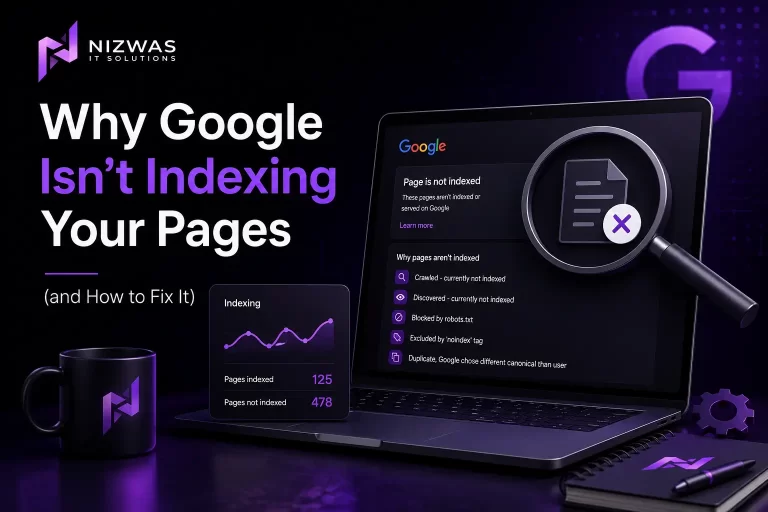
Publishing a new page and waiting for it to appear in Google can be frustrating.
The page is live.
The design looks good.
The SEO plugin says everything is green.
The sitemap has been submitted.
And yet, when you search for the page, nothing appears.
Before changing the title, buying backlinks, or submitting the URL to Google ten times, there is one thing you should do first:
Find out exactly why Google has not indexed it.
Google’s own documentation makes an important distinction: a page being “Not indexed” does not automatically mean something is wrong. Google intentionally leaves some URLs out of its index, including duplicates, pages blocked by noindex, and URLs that aren’t appropriate to index. The goal isn’t to get every URL indexed; the goal is to get your important, canonical pages indexed.
This guide explains why Google isn’t indexing your pages, how to diagnose the actual problem in Google Search Console, and what you should fix before requesting indexing again.
Part 1: First, Find Out Whether Your Page Is Actually Not Indexed
One of the most common mistakes in SEO is assuming that a page isn’t indexed simply because you can’t find it when searching Google.
That’s not necessarily true.
A page can be indexed but rank far beyond the first few pages for its target query.
So before fixing anything, verify the situation.
1. Use Google Search Console URL Inspection
The most reliable starting point is URL Inspection in Google Search Console.
Enter the complete URL of the page.
Google will tell you whether the URL is:
- On Google
- Not on Google
- Crawled but currently not indexed
- Discovered but currently not indexed
- Blocked by
robots.txt - Excluded by
noindex - A duplicate
- Redirected
- A soft 404
- Affected by another indexing problem
Google specifically recommends URL Inspection for diagnosing individual pages because it provides information about how Google sees and processes that URL.
This is much better than guessing.
2. Don’t panic when Search Console says “Not indexed”
This message sounds worse than it is.
For example, your website might have:
- 200 product URLs
- 50 filter URLs
- 30 tag pages
- 20 pagination URLs
- 10 duplicate URLs
- 5 important service pages
If Google indexes the five service pages and the appropriate product/category URLs while excluding the unnecessary duplicates, that can be perfectly healthy.
Google explicitly says you should not expect 100% of URLs to be indexed. What matters is whether your important canonical pages are indexed.
3. Check the Page Indexing report
For a broader website diagnosis, open:
Google Search Console → Indexing → Pages
The report separates URLs into indexed and non-indexed groups and gives reasons for exclusion.
Look for patterns rather than focusing immediately on one URL.
For example:
3 pages not indexed
may not be concerning.
But:
800 service and product pages suddenly not indexed
is a completely different situation.
Google recommends investigating spikes and prioritizing impactful issues rather than trying to eliminate every “Not indexed” status.
4. Check whether Google has discovered the page
A page cannot be indexed if Google doesn’t know it exists.
Google can discover URLs through:
- Internal links
- External links
- XML sitemaps
- Other pages it has already crawled
Google explains that pages that are not linked from anywhere can be particularly difficult for its systems to discover.
This is why publishing a page and immediately placing it only inside an XML sitemap isn’t always enough.
Ask:
Can Google reach this page naturally from other important pages on my website?
If the answer is no, fix the internal linking first.
Part 2: The Technical Reasons Google May Not Index Your Pages
If Google knows about the page but isn’t indexing it, start with technical signals.
These are often the easiest problems to identify and fix.
Google’s minimum technical requirements are straightforward: Googlebot must not be blocked, the page must work successfully, normally returning HTTP 200, and the page must contain indexable content. Even meeting those requirements does not guarantee indexing.
5. An accidental noindex tag
This is one of the first things to check.
A page can look completely normal to you while telling Google:
Don’t put me in the search index.
For example:
<meta name="robots" content="noindex">or an HTTP response header can contain a similar directive.
If the page should be indexed, remove the noindex instruction.
Google’s documentation confirms that when a page contains a noindex directive, Google will not index it.
Where this often happens
Watch for accidental noindex settings after:
- WordPress migrations
- Website redesigns
- Staging deployments
- SEO plugin changes
- Theme changes
- Development work
- Template modifications
A developer may correctly use noindex on a staging environment and then accidentally carry the setting into production.
6. Your robots.txt is blocking Google
Check:
https://example.com/robots.txtLook for rules such as:
User-agent: *
Disallow: /services/
If your important service pages live inside /services/, Googlebot may be unable to crawl them.
Another dangerous example is:
User-agent: *
Disallow: /
That effectively tells compliant crawlers not to crawl the site.
Google states that pages blocked by robots.txt are unlikely to appear normally in Search because Google cannot crawl their content.
Important distinction
robots.txt and noindex are not interchangeable.
robots.txt controls crawling.
noindex controls indexing.
If Google cannot crawl a page because robots.txt blocks it, Google may not be able to see a noindex directive on that page.
So don’t use robots.txt as your primary method for removing a page from Google’s index.
7. The page requires a login
Google cannot index content that is inaccessible to the public.
Check whether your page is:
- Behind a login
- Password protected
- Restricted by an application firewall
- Blocking Googlebot
- Available only to authenticated users
A page that works perfectly when you’re logged into WordPress isn’t necessarily accessible to Google.
8. The page returns the wrong HTTP status
A page intended to rank should normally return a successful response.
Check for:
200 OK301302404410500502503
A page that should exist but consistently returns a server error cannot be indexed normally.
Google’s technical requirements specifically state that the page needs to work and return a successful HTTP status code for eligibility.
9. Your page redirects somewhere else
If:
/page-a/redirects to:
/page-b/Google generally indexes the destination rather than the redirecting URL.
This is normal behavior.
The problem occurs when an important page unexpectedly redirects because of:
- A migration
- A plugin
- A server rule
- Incorrect canonicalization
- Old redirects
- URL restructuring
Google’s Search Console documentation notes that redirect URLs themselves are not indexed; the target URL is the one intended for indexing.
10. Your canonical points to another URL
Imagine you created:
/service/wordpress-development/but the page contains:
<link rel="canonical"
href="https://example.com/services/web-development/">
You’re effectively telling Google that another URL is the preferred version.
Canonicalization is useful when you genuinely have duplicate or very similar URLs.
But an incorrect canonical can prevent the page you care about from becoming the selected version.
Check the canonical shown in URL Inspection.
Google may also select a different canonical from the one you specified.
Part 3: Google Crawled the Page — But Still Didn’t Index It
This is where things get more interesting.
Suppose Search Console says:
Crawled – currently not indexed
Google has already visited the URL.
So repeatedly asking Google to crawl it isn’t necessarily the answer.
Now you need to examine the page itself.
11. Your content may be too thin
A page can technically work perfectly and still provide very little value.
For example:
Web Design Services in Delhi
followed by:
We provide professional web design services. Contact us today.
That’s technically a webpage.
But it doesn’t give Google — or the customer — much to work with.
A stronger service page might explain:
- What the service includes
- Who it’s for
- Problems it solves
- Process
- Technologies used
- Typical timeline
- Examples
- FAQs
- Results
- Experience
- Pricing guidance where appropriate
- How to get started
The purpose isn’t to make the page artificially long.
The purpose is to make it genuinely useful.
12. Your page is too similar to another page
Duplicate and near-duplicate content can create indexing problems.
This is especially common with location pages.
For example:
WordPress Development in Delhi
WordPress Development in Noida
WordPress Development in Gurgaon
If all three pages contain almost identical text with only the city name changed, there may be little reason for Google to treat them as three substantially different resources.
The same issue can happen with:
- Product variations
- Category pages
- Location pages
- Service pages
- Tag archives
- Filter pages
- AI-generated bulk pages
Google’s Page Indexing documentation explicitly notes that duplicate pages may legitimately remain outside the index.
13. Your page doesn’t offer enough original value
Google doesn’t need another page that says exactly what thousands of existing pages already say.
Ask yourself:
If Google already has 100 good pages answering this question, what does mine add?
Original value could come from:
- First-hand experience
- Case studies
- Screenshots
- Original research
- Expert commentary
- Real examples
- Unique data
- Detailed processes
- Testing
- Comparisons
- Lessons learned from actual projects
This is particularly important for competitive topics.
14. Your important page is an orphan
An orphan page exists without meaningful internal links pointing toward it.
For example:
Homepage
 ├── Services
 ├── About
 └── Blog
And somewhere completely disconnected:
/blog/technical-seo-checklist/If the page exists only because it is in the sitemap, you’re making discovery harder than necessary.
Link to important content from relevant pages.
For example:
Technical SEO Service → Technical SEO Checklist
WordPress Development → WordPress Technical SEO
Website Speed Optimization → Core Web Vitals Guide
This creates a logical content network.
15. Your page is buried too deeply
If an important page requires visitors to click through:
Homepage
→ Category
→ Subcategory
→ Archive
→ Sub-archive
→ Page
→ Target page
it deserves investigation.
Important commercial pages should generally be easy to discover through your site’s navigation and internal links.
Google’s own guidance emphasizes making important pages discoverable through links and sitemaps.
16. The page is mostly JavaScript without accessible content
Modern websites often use JavaScript frameworks.
JavaScript itself isn’t the problem.
The problem occurs when the content Google needs is difficult to access or render.
For example, a page might initially deliver:
<div id="app"></div>and depend entirely on JavaScript to insert the actual article.
If something goes wrong with rendering, Google may not see the content you see in your browser.
This is particularly important for:
- React
- Next.js
- Vue
- Angular
- Custom JavaScript applications
- AJAX-loaded content
Use URL Inspection and Google’s rendered-page view to see what Google can actually access.
Part 4: “Discovered – Currently Not Indexed” Is a Different Problem
Another common Search Console status is:
Discovered – currently not indexed
This means Google knows about the URL but hasn’t crawled it yet.
That is different from:
Crawled – currently not indexed
The distinction matters.
17. Don’t request indexing repeatedly
If you’ve clicked Request Indexing five times today, stop.
Google doesn’t guarantee immediate indexing after a request.
Its documentation states that indexing isn’t instant and that even after submitting a crawl request, it can take time before a page is processed.
A request is useful.
Repeated requests without making meaningful changes are not a strategy.
18. Improve internal links
If a page is important, link to it from pages Google already knows.
For example:
Homepage
   ↓
SEO Services
   ↓
Technical SEO
   ↓
Technical SEO Checklist
This is much stronger than:
XML Sitemap
   ↓
Technical SEO Checklist
The sitemap helps discovery.
Internal linking helps establish the page’s place within your website.
19. Clean up crawl waste
Large websites can create enormous numbers of URLs through:
- Search parameters
- Filters
- Sorting
- Tracking parameters
- Duplicate paths
- Calendar archives
- Tag pages
- Faceted navigation
If Google spends resources repeatedly encountering low-value URLs, your site’s crawl environment becomes more complicated.
Don’t blindly block everything.
First understand which URLs are valuable, which should be indexed and which should not.
20. Keep your sitemap clean
Your XML sitemap should primarily contain URLs you want Google to discover and consider indexing.
Avoid filling it with:
- Redirect URLs
- 404 URLs
- Noindexed URLs
- Duplicate URLs
- Temporary URLs
Google recommends using sitemap files to communicate preferred URLs and notes that sitemaps are particularly useful for helping search engines discover URLs.
But remember:
A sitemap is not an indexing guarantee.
Submitting a URL doesn’t force Google to index it.
21. Build authority naturally
If your website is brand new and has virtually no external references, Google may take longer to discover and revisit pages.
Relevant links can help Google discover content and understand that a website has a legitimate presence.
That doesn’t mean buying hundreds of backlinks.
Instead, earn relevant mentions through:
- Industry publications
- Partnerships
- Guest contributions
- Local organizations
- Business directories
- Case studies
- Original research
- Digital PR
- Useful resources
One relevant, genuine link is more useful than a pile of irrelevant links created solely for SEO.
Part 5: A Step-by-Step Fix for Pages Google Isn’t Indexing
Now let’s turn all of this into a practical workflow.
If one of your pages isn’t indexed, don’t start changing everything.
Follow the sequence.
Step 1: Verify the URL
Open Google Search Console.
Go to:
URL Inspection → Enter URL
Determine whether the URL is actually indexed.
If it is indexed, your problem may actually be ranking rather than indexing.
Step 2: Check the indexing status
Look for messages such as:
- URL is on Google
- URL is not on Google
- Crawled – currently not indexed
- Discovered – currently not indexed
- Excluded by
noindex - Blocked by robots.txt
- Duplicate
- Redirect
- Soft 404
This status determines your next step.
Step 3: Check whether Google can access the page
Use:
Test Live URL
Check whether Google can retrieve the page.
Look for:
- Access problems
- Robots restrictions
- Server errors
- Rendering problems
- Login requirements
Step 4: Check noindex
Inspect the HTML and HTTP headers.
Search for:
noindexIf you find it on a page that should be indexed, remove it.
Step 5: Check robots.txt
Look at:
/robots.txtMake sure Googlebot isn’t blocked from the page or important resources.
Step 6: Check the canonical
Ask:
Does the canonical point to this URL?
If not, determine whether that is intentional.
If Google has selected another canonical, investigate why.
Step 7: Check the HTTP status
The page should normally return:
200 OKif it is intended to be indexed.
Fix unexpected:
- 404
- 410
- 500
- 502
- 503
- Redirect loops
Step 8: Review the content
Now ask the harder question:
Why would Google want to index this page?
Look at:
- Originality
- Depth
- Search intent
- Accuracy
- First-hand experience
- Usefulness
- Duplicate content
- Internal competition
Don’t add 2,000 words simply to hit a word count.
Improve the page.
Step 9: Add internal links
Link to the page from relevant, already-indexed pages.
Use natural anchor text.
Step 10: Add it to your sitemap
If the page is canonical, indexable and important, make sure the sitemap includes it.
Step 11: Request indexing
After making meaningful improvements, use:
URL Inspection → Request Indexing
Google provides this feature for requesting a crawl of an individual URL. It also recommends using sitemaps when you need to communicate multiple URLs.
Step 12: Wait and monitor
Don’t immediately assume the request failed.
Google says new pages can take time to be crawled and indexed, with the timing varying by site and circumstances. Its current troubleshooting guidance recommends allowing time after a recent indexing request before concluding there is a persistent problem.
The Google Indexing Checklist for 2026
- URL Inspection checked
- Page Indexing report reviewed
- Sitemap submitted
- Important URLs monitored
- Manual Actions checked
- Security Issues checked
Google Search Console
Technical SEO
- Page returns 200
- No accidental
noindex - Robots.txt isn’t blocking page
- Googlebot can access page
- No login requirement
- Canonical is correct
- No redirect loop
- No server errors
- Page renders correctly
Content
- Content is original
- Content satisfies search intent
- Page isn’t thin
- Page isn’t near-duplicate
- Information is accurate
- First-hand expertise is demonstrated
- Page provides genuine value
Internal Linking
- Page linked from relevant content
- Page isn’t orphaned
- Important page is easy to discover
- Internal links use descriptive anchors
- Links point to the canonical URL
Sitemap
- URL included if appropriate
- URL is canonical
- URL returns 200
- URL isn’t noindexed
- No redirected URLs in sitemap
- No broken URLs in sitemap
After Fixing
- Live URL tested
- Changes verified
- Indexing requested
- Search Console monitored
- Traffic monitored
- Indexing status checked again
What If Google Still Doesn’t Index the Page?
This is where you need to resist the temptation to keep submitting the URL.
If the page is technically accessible and there are no obvious indexing restrictions, the issue may be Google’s decision about whether the URL belongs in the index.
Google explicitly states that meeting its minimum technical requirements does not guarantee indexing.
At that point, examine the page from a user’s perspective.
Ask:
Is this page genuinely useful?
Is it substantially different from my other pages?
Does it answer the searcher’s question better than existing results?
Does it demonstrate real expertise?
Is it supported by the rest of my website?
Would I recommend this page to someone without considering SEO?
Those questions often reveal more than another technical audit.
Final Thoughts
Google not indexing a page isn’t always a technical failure.
Sometimes the problem is a noindex tag.
Sometimes it’s robots.txt.
Sometimes it’s a canonical mistake.
Sometimes Google hasn’t discovered the URL.
Sometimes the page has been crawled but isn’t being selected for indexing.
And sometimes the page simply doesn’t provide enough unique value to justify becoming another URL in Google’s enormous index.
The important thing is to diagnose before changing.
Start with Google Search Console.
Check the exact URL.
Find the status.
Fix the specific problem.
Then request indexing.
Google’s own documentation recommends using the Page Indexing report to understand why URLs aren’t indexed and the URL Inspection tool to investigate individual pages. It also emphasizes that “Not indexed” isn’t automatically an error.
And remember one of the most important principles in technical SEO:
You don’t need Google to index every URL on your website.
You need Google to index the pages that matter.
Your homepage.
Your important service pages.
Your valuable product and category pages.
Your strongest resources.
Your useful, original content.
Those are the URLs worth fixing first.
If those pages are crawlable, indexable, useful, internally connected and technically healthy, you’re giving Google a much stronger reason to include them in its index.
Frequently Asked Questions
1. Why is Google not indexing my pages?
Google may not be indexing a page because it cannot discover or crawl it, because a technical directive such as noindex or robots.txt prevents access, because the URL is a duplicate or redirect, or because Google has crawled it but has not selected it for indexing. Google Search Console’s Page Indexing report and URL Inspection tool can help identify the specific reason.
2. How do I check if Google has indexed my page?
Use the URL Inspection tool in Google Search Console. You can also search Google using the page’s exact URL or a site: query, but URL Inspection provides a more useful diagnostic view of the URL’s indexing status.
3. How long does Google take to index a new page?
There is no fixed indexing time. Google says new pages can take days or longer to be discovered and indexed, and requesting indexing does not guarantee immediate inclusion.
4. Does submitting a sitemap guarantee indexing?
No. A sitemap helps Google discover URLs, but submitting a sitemap does not guarantee that Google will crawl or index every URL in it. Google specifically says that not every URL will necessarily be indexed.
5. Why does Search Console say “Crawled – currently not indexed”?
It means Google has crawled the URL but has not included it in the index at that time. Review the content for originality, usefulness, duplication and search intent, and check internal linking and canonical signals before requesting another crawl.
6. What does “Discovered – currently not indexed” mean?
It means Google knows the URL exists but has not crawled it yet. Improve its discoverability through internal links and a clean sitemap, check for crawl issues and allow Google time to process the URL.
7. Can a noindex tag prevent Google from indexing a page?
Yes. A noindex directive specifically tells Google not to index the page. If the page should appear in Search, remove the directive and then request another crawl.
8. Can robots.txt stop Google from indexing a page?
A robots.txt rule can prevent Googlebot from crawling the page. This can prevent Google from accessing and processing its content normally. Robots.txt should not be confused with noindex, and it isn’t the recommended mechanism for removing an already-known URL from Search.
9. Does thin content prevent indexing?
Thin or low-value content can contribute to a page not being selected for indexing, particularly when the page offers little unique value or closely duplicates other content. Improving the page’s usefulness and originality is preferable to simply adding more words.
10. Can duplicate content cause pages not to be indexed?
Yes. Google may choose one canonical version of duplicate or very similar URLs rather than indexing every version. This is why canonicalization and unique page value are important.
11. Does internal linking help Google index pages?
Internal links help Google discover pages and understand their relationship within your website. Important pages should not exist only in a sitemap; they should also be connected naturally from relevant parts of the site.
12. Should I request indexing every time I publish a page?
You can request indexing for important new or updated pages, but repeated requests don’t guarantee faster indexing. Google states that indexing is not instant and recommends allowing time for crawling and processing.
13. Why is my homepage indexed but my other pages aren’t?
The other pages may not be sufficiently discoverable, may be blocked, may have indexing directives, may be duplicates, or may simply not have been crawled yet. Check internal links, your sitemap and the Page Indexing report.
14. Can website speed affect indexing?
Severe performance or server-access problems can interfere with crawling and rendering. However, a page doesn’t need a perfect PageSpeed score to be indexed. First make sure Googlebot can access the page, the server responds successfully and the content is available.
15. Can JavaScript prevent Google from indexing my content?
JavaScript can create indexing problems if important content or links aren’t accessible or rendered correctly for Google. Use URL Inspection and the rendered-page view to check what Google can actually see.
16. What is the fastest way to fix Google indexing problems?
There is no universal shortcut. The fastest approach is to identify the exact Search Console status, fix the underlying issue, verify the live URL and then request indexing. Technical blockers should be addressed before spending time on repeated indexing requests.