WordPress migration cost can range from a relatively small technical fee to several thousand dollars, depending on what is actually being migrated and how much risk the project carries.
Moving a small WordPress website from one hosting provider to another may involve transferring files and a database, updating configuration, testing the site, and changing DNS. A larger migration may also involve WooCommerce orders, custom plugins, email services, DNS records, redirects, staging environments, performance optimization, security checks, and SEO preservation.
Current published pricing illustrates that range. Upwork’s WordPress Migration Experts marketplace currently describes typical project costs of about $500–$1,500, while more complex migration work can cost substantially more. Other current 2026 pricing guides place host-to-host migrations in the hundreds to several thousand dollars, with full rebuilds and platform changes reaching much higher levels.
The important question, therefore, isn’t simply “How much does WordPress migration cost?”
It is:
“What exactly is included in the migration, and what risks need to be managed?”
This guide breaks down the costs, explains what affects the final quote, and gives you a practical way to evaluate migration proposals.
Who Wrote This Guide?
This guide was prepared for Nizwas IT Solutions, a WordPress development and digital solutions company working with businesses on website development, performance, technical SEO, security, and ongoing website support. Nizwas describes its work as covering WordPress development, website improvement, maintenance, SEO, and performance-focused digital solutions.
The recommendations below combine current published migration pricing references with official WordPress and Google Search documentation.
What Will You Learn?
By the end of this guide, you’ll understand:
- Typical WordPress migration cost ranges in 2026
- Why two migration quotes can be dramatically different
- What makes WooCommerce migrations more complicated
- When SEO work becomes part of the migration
- How hosting changes differ from domain migrations
- What should be included in a professional migration
- Which migration tasks you can handle yourself
- Common mistakes that create unexpected costs
- How to compare migration proposals
- How to prepare your website before migration
Quick Overview: How Much Does WordPress Migration Cost in 2026?
There is no single industry-wide price for WordPress migration.
A useful planning framework based on current published market references looks like this:
| Migration type | Typical planning range | What can affect the price |
|---|---|---|
| DIY migration | $0–$100+ | Hosting tools, premium plugins, technical assistance |
| Standard WordPress migration | Around $500–$1,500 | Site size, hosting, testing, configuration |
| More involved host-to-host migration | Around $500–$4,000+ | Custom code, DNS, email, security, QA |
| WooCommerce migration | Often higher than a standard site | Products, orders, customers, payments, integrations |
| WordPress rebuild/replatform | $2,000–$15,000+ | Redesign, custom development, content volume |
| Enterprise/complex migration | $10,000+ | Large databases, integrations, multisite, custom architecture |
These are planning figures, not fixed market tariffs or national averages. Upwork currently publishes $500–$1,500 as a typical WordPress Migration Expert project range, while another current 2026 pricing dataset reports host-to-host migrations at roughly $500–$2,500 for freelancers and $1,200–$4,000 for agencies.
A migration involving a complete rebuild can move considerably beyond those figures. Current migration guides show that once redesign, platform changes, custom functionality, or large amounts of content enter the project, pricing can reach tens of thousands of dollars.
What Is WordPress Migration?
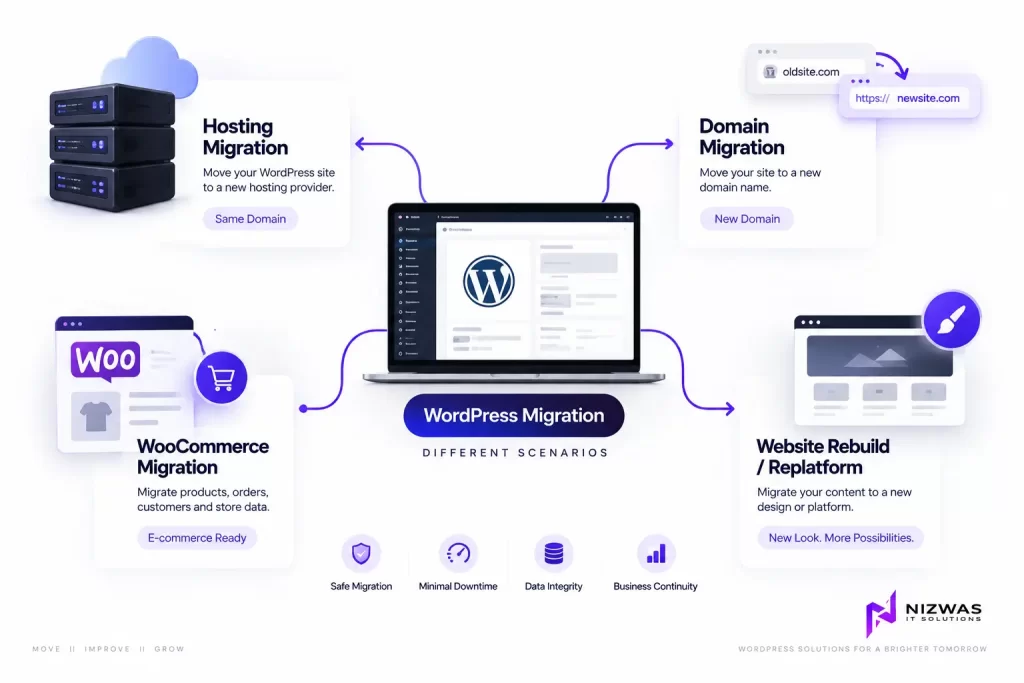
WordPress migration means moving a WordPress website from one environment to another.
That can mean:
- Moving from one hosting provider to another
- Moving to a new server
- Changing the domain
- Moving from staging to production
- Moving from local development to live hosting
- Moving from WordPress.com to self-hosted WordPress
- Rebuilding an existing website on a new WordPress installation
- Moving from another CMS to WordPress
- Moving WordPress to a different technology or platform
WordPress itself can be moved to another server without reinstalling the entire platform. The official WordPress documentation explains that a migration generally involves moving the WordPress files and database, then adjusting configuration when necessary.
The distinction matters because not every migration is the same project.
A five-page business website with no custom functionality is very different from a WooCommerce store containing thousands of products and years of customer orders.
Why Does WordPress Migration Cost Vary So Much?
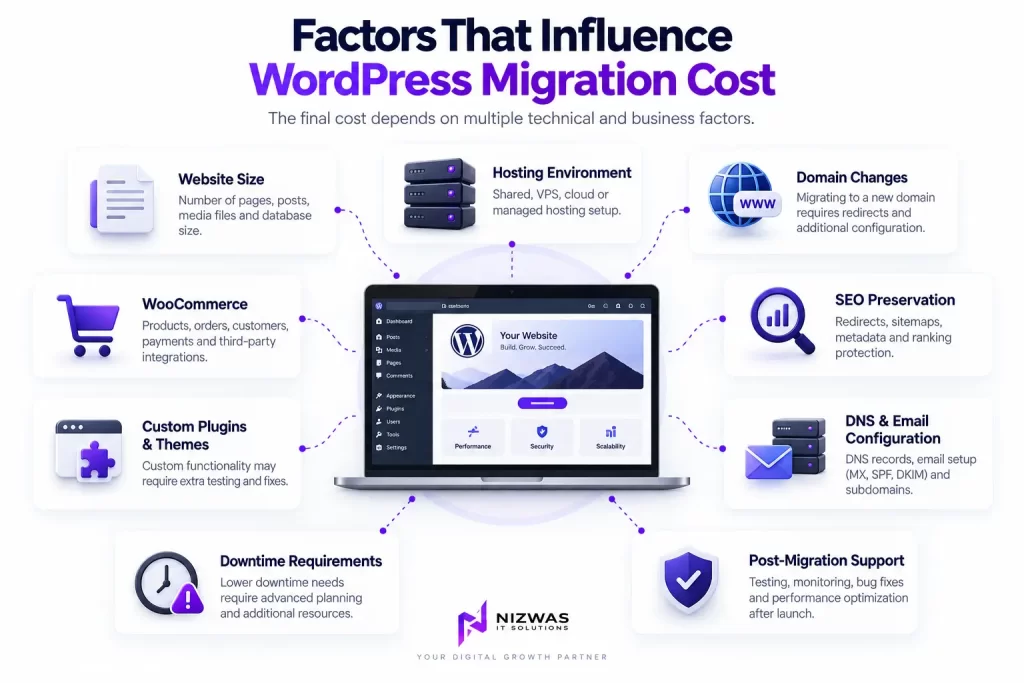
1. Website Size
The number of pages, posts, media files, products, users, and database records affects migration effort.
A small brochure website may have:
- 5–20 pages
- A few plugins
- One theme
- Limited media
- No customer database
A larger website could contain:
- Thousands of posts
- Hundreds of products
- Multiple authors
- Custom post types
- Large media libraries
- Multiple databases or integrations
More data means more validation.
2. Hosting Environment
Moving between similar hosting environments can be relatively straightforward.
Moving from shared hosting to a managed VPS, cloud server, or customized infrastructure can require additional server configuration.
Potential tasks include:
- PHP configuration
- Database configuration
- Web server configuration
- SSL setup
- CDN configuration
- Caching
- Firewall rules
- File permissions
- Cron jobs
- Email configuration
Google specifically recommends preparing and testing the new hosting infrastructure before switching traffic.
3. Domain Changes
A hosting migration where the URL stays the same is different from changing the domain.
For example:
oldcompany.com → newcompany.com
Now the project may require:
- URL mapping
- 301 redirects
- Canonical updates
- Internal-link updates
- Sitemap changes
- Search Console configuration
- Analytics updates
- External link updates
Google’s site-move documentation recommends mapping old URLs to their corresponding new URLs and using server-side permanent redirects where appropriate.
4. SEO Preservation
This is one of the areas where a cheap migration can become expensive later.
If URLs change, a migration can affect:
- Organic traffic
- Indexed URLs
- Internal links
- Canonical URLs
- XML sitemaps
- Redirects
- Search Console data
- Image URLs
- Structured data
Google notes that ranking fluctuations can temporarily occur while its systems recrawl and reindex a moved website. For medium-sized sites, Google says the process can take weeks or longer.
That doesn’t mean migration automatically causes ranking loss. It means the migration needs to be planned correctly.
5. WooCommerce Complexity
WooCommerce migrations require additional attention because you’re not only moving pages.
You may also need to protect:
- Products
- Product variations
- Customers
- Orders
- Coupons
- Payment configurations
- Shipping settings
- Tax configuration
- Inventory
- Emails
- Third-party integrations
A business selling online should not treat a WooCommerce migration as a simple file-copy operation.
6. Custom Themes and Plugins
A migration may expose compatibility problems that weren’t visible on the old server.
For example:
- Old PHP version dependencies
- Deprecated functions
- Plugin conflicts
- Custom code errors
- Theme compatibility problems
- Database character-set issues
- API connection failures
A professional migration should identify these risks before the final DNS switch whenever possible.
7. Email and DNS
Your website and email may depend on the same domain but different systems.
A hosting migration can involve:
- A records
- CNAME records
- MX records
- SPF
- DKIM
- DMARC
- Subdomains
- CDN records
Changing DNS without understanding these dependencies can result in a website working while business email stops working.
8. Downtime Requirements
A personal blog may tolerate a short maintenance window.
An ecommerce store or lead-generation website may not.
For a business site, the migration plan may need:
- Staging migration
- Testing
- Final database synchronization
- DNS preparation
- Low-traffic cutover
- Post-launch monitoring
The stricter the downtime requirement, the more planning and testing may be necessary.
9. Post-Migration Support
Some providers transfer the site and consider the job finished.
Others include:
- Functional testing
- Broken-link checks
- Performance testing
- Security checks
- Search Console monitoring
- Redirect verification
- Bug fixes
- Post-launch support
When comparing quotes, check which approach you’re actually paying for.
What Should Be Included in a Professional WordPress Migration?
A proper migration should be more than copying files.
Pre-Migration Audit
Before touching the production website, document:
- Current hosting
- PHP version
- WordPress version
- Active theme
- Plugins
- Database size
- Website size
- DNS configuration
- SSL
- Email dependencies
- Analytics
- Search Console
- Robots.txt
- XML sitemap
- Important URLs
This creates a baseline for testing later.
Full Backup
The website should have a verified backup of:
- WordPress files
- Database
- Media
- Configuration
- Important server settings
WordPress’s own migration documentation recommends backing up the WordPress directory, files, images, plugins, and database before moving the site.
Staging Migration
Whenever practical, the new environment should be tested before DNS is switched.
Test:
- Homepage
- Pages
- Posts
- Forms
- Login
- Search
- Menus
- Images
- Downloads
- APIs
- Ecommerce checkout
- Payment gateways
- Email notifications
DNS and SSL Configuration
The destination server needs to be correctly configured before the domain points to it.
Google’s hosting migration guidance specifically recommends preparing the new infrastructure, testing it, then updating DNS and monitoring both environments during the transition.
SEO Verification
If URLs change, check:
- 301 redirects
- Canonical URLs
- Internal links
- XML sitemap
- Robots.txt
- Metadata
- Structured data
- Hreflang, if applicable
Google recommends keeping redirect chains short and directing old URLs to their final destinations rather than sending multiple redirects through intermediate URLs.
Practical Example: Three WordPress Migration Scenarios
Example 1: Small Business Website
A five-page WordPress website is moving from one hosting company to another.
The domain stays the same.
The site has:
- 8 pages
- 15 plugins
- No ecommerce
- Standard contact form
- No custom application
The work may primarily involve backup, transfer, database configuration, DNS, SSL, testing, and cleanup.
This is much simpler than a domain migration.
Example 2: WooCommerce Store
A WooCommerce business is moving to a better server.
The website has:
- 500 products
- Product variations
- Customer accounts
- Historical orders
- Payment gateway
- Shipping integration
- Email automation
The migration requires additional testing because a technical mistake could affect transactions or customer data.
The price should therefore reflect the additional risk and QA work.
Example 3: Website Migration Plus Redesign
A company wants to move hosting and completely redesign its website at the same time.
That is no longer just a migration.
It may include:
- New UI/UX
- New templates
- Content restructuring
- New URLs
- Custom development
- SEO migration
- Redirect mapping
- Performance optimization
- New integrations
This explains why some migration projects cost hundreds of dollars while others reach several thousand or tens of thousands.
How Does a WordPress Migration Work?
A controlled migration generally follows this sequence.
Step 1: Audit the Existing Website
Document the current environment before making changes.
Step 2: Create and Verify Backups
Never rely on an untested backup.
Step 3: Prepare the New Server
Install and configure the required WordPress environment.
Step 4: Move the Website
Transfer files and database data.
Step 5: Update Configuration
Adjust database credentials, URLs, PHP settings, server configuration, and other environment-specific values.
Step 6: Test Before DNS Changes
Use a staging URL, temporary environment, or suitable testing method.
Step 7: Perform the Final Cutover
Synchronize any final changes and point DNS toward the new environment.
Step 8: Test the Live Website
Check the site from the user’s perspective and monitor server errors.
Step 9: Verify SEO
Check redirects, indexing signals, sitemap, canonical URLs, internal links, and Search Console.
Step 10: Monitor After Launch
Don’t immediately delete the old environment.
Google recommends monitoring the old and new infrastructure and only shutting down the old environment once you’re confident users and Googlebot are receiving the site correctly.
Common WordPress Migration Mistakes to Avoid
Mistake 1: Treating Every Migration as a File Transfer
A website is more than its files.
The database, DNS, email, integrations, caching, redirects, and server environment can all matter.
Mistake 2: Skipping the Backup
A migration without a reliable rollback option creates unnecessary risk.
Mistake 3: Changing Hosting and Website Structure Together
Google recommends changing one major element at a time where possible. Combining a hosting migration, domain change, redesign, CMS change, and URL restructuring makes troubleshooting significantly harder.
Mistake 4: Forgetting Redirects
If old URLs are changing, don’t simply send every old page to the homepage.
Google specifically warns against irrelevant redirects and recommends mapping old URLs to appropriate final destinations.
Mistake 5: Ignoring Email
Check MX, SPF, DKIM, and DMARC before changing DNS.
Mistake 6: Testing Only the Homepage
The homepage can work while checkout, forms, APIs, search, or internal pages are broken.
Mistake 7: Closing the Old Hosting Too Quickly
Keep the old environment available until the migration has been validated.
Expert Tips for Reducing WordPress Migration Cost
Separate Migration From Redesign
If the existing website needs a redesign, decide whether it should happen before, after, or as part of the migration.
Combining everything can make the project larger and harder to troubleshoot.
Prepare a URL Inventory
For an SEO-sensitive website, export important URLs before migration.
Include:
- Page URL
- Status code
- Organic traffic
- Backlinks
- Canonical
- Target URL
This gives you a reference point for post-migration checks.
Lower DNS TTL Before Cutover
If appropriate for your DNS setup, reducing TTL before the planned switch can make the cutover easier to manage.
Use Staging
A staging environment gives you a place to identify problems before customers encounter them.
Keep a Rollback Plan
Know exactly how you would restore the previous environment if something goes wrong.
Don’t Pay for Unnecessary Work
A small business website may not need the same migration process as a large WooCommerce store.
Ask for a scope that matches your actual website.
How to Compare WordPress Migration Quotes
Don’t compare proposals based only on the final number.
Use a checklist like this:
| Question | Why it matters |
|---|---|
| Is a complete backup included? | Provides rollback protection |
| Is staging included? | Allows testing before launch |
| Is DNS included? | Prevents cutover confusion |
| Is SSL included? | Keeps HTTPS working |
| Are redirects included? | Protects changed URLs |
| Is SEO testing included? | Helps identify migration issues |
| Is WooCommerce testing included? | Protects store functionality |
| Is email configuration included? | Prevents mail disruption |
| Is post-launch support included? | Helps resolve unexpected problems |
| Is performance testing included? | Confirms the new environment works properly |
A $300 quote and a $2,000 quote may not be competing for exactly the same service.
One might be a basic transfer.
The other might include staging, DNS, SEO, testing, performance, security, and post-launch support.
Key Takeaways
The most important points are:
- WordPress migration cost has no single fixed price.
- Current published marketplace references put many professional migration projects in the hundreds to low thousands of dollars.
- Hosting-only migrations are generally simpler than domain, platform, or redesign migrations.
- WooCommerce migrations require additional testing because of products, customers, orders, payments, and integrations.
- SEO preservation becomes especially important when URLs or domains change.
- A proper backup and rollback strategy should be part of the process.
- Staging allows problems to be discovered before the DNS switch.
- The cheapest quote isn’t necessarily comparing the same scope as a more comprehensive quote.
- Migration pricing should be based on scope, complexity, risk, and required validation, not simply website size.
Frequently Asked Questions
There is no universal price. Current published references include roughly $500–$1,500 for typical WordPress migration projects on Upwork, while more complex host-to-host, WooCommerce, rebuild, or platform migration projects can cost substantially more.
It can be. Some hosting companies offer migration at no additional charge when you move to their hosting plans. Hostinger and MilesWeb, for example, currently advertise free WordPress migration with their hosting services.
However, “free migration” may cover only the transfer itself. SEO work, custom fixes, redesign, performance optimization, or complex integrations may be separate.
A properly planned migration can reduce avoidable SEO problems, but no provider can guarantee that rankings will remain exactly unchanged.
Google says temporary ranking fluctuations can occur while its systems recrawl and reindex a moved site.
WooCommerce migration pricing varies according to product volume, customer and order data, payment gateways, shipping integrations, custom functionality, and testing requirements. It generally requires more planning than a simple brochure-site transfer.
A simple migration can sometimes be completed within a day or a few days, while complex migrations may take weeks or longer. The timeline depends on website size, testing requirements, integrations, SEO work, and whether a redesign or rebuild is involved.
Yes. WordPress provides documentation for moving sites, and migration plugins can automate parts of the process.
The difficulty increases when the website has ecommerce, custom code, large databases, complicated DNS, or SEO-sensitive URL changes.
It depends on the project. If possible, separating major changes can make troubleshooting easier. Google recommends changing one major element at a time where practical during site moves.
Check the homepage, important pages, forms, login, images, internal links, redirects, SSL, DNS, email, analytics, Search Console, sitemap, robots.txt, canonical URLs, ecommerce functions, and server errors.
Final Thoughts
WordPress migration cost in 2026 depends less on the word “migration” and more on what you actually need moved, rebuilt, tested, and protected.
A simple hosting transfer may be relatively straightforward. A business website with custom functionality, SEO traffic, ecommerce data, third-party integrations, and strict uptime requirements is a different project entirely.
Before accepting a quote, ask the provider to explain the scope.
You should know:
- What is being transferred?
- What is being tested?
- Is staging included?
- Are redirects included?
- Is SEO verification included?
- Who handles DNS?
- What happens if something breaks?
- How long is post-launch support provided?
For businesses where the website contributes directly to leads, sales, or customer communication, migration should be treated as a controlled technical project rather than a simple copy-and-paste exercise.
If your website needs a migration, redesign, performance improvement, or technical SEO work, Nizwas IT Solutions provides WordPress development and website support services designed around the existing website and its business requirements.