A WordPress update should normally be routine: back up the site, update WordPress, check the front end and move on.
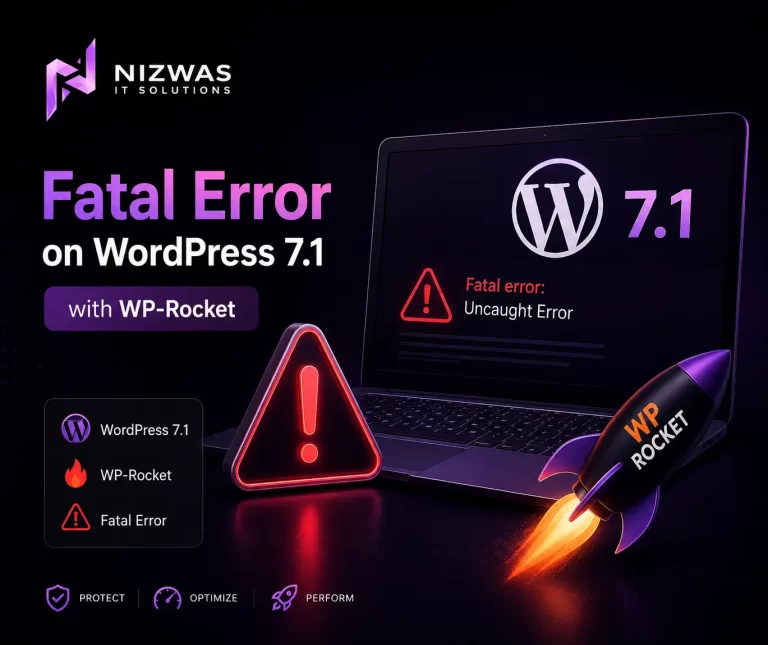
But the release of WordPress 7.1 on August 19, 2026 exposed a serious compatibility problem for websites using certain versions of WP Rocket, particularly where WP Rocket’s Cloudflare integration was involved. WordPress had spent several weeks in beta and release-candidate testing before the scheduled August 19 release.
The resulting error could take a website offline with a PHP fatal error similar to:
Uncaught TypeError: substr(): Argument #1 ($string)
must be of type string, int given/wp-content/plugins/wp-rocket/inc/ThirdParty/Plugins/CDN/Cloudflare.phpand, specifically, line 562 in the affected version. WP Rocket’s official documentation confirms that this was a compatibility issue between WP Rocket and WordPress 7.1.
There is good news: WP Rocket has released the permanent fix in version 3.23.2.2. WP Rocket’s official documentation, last updated August 20, 2026, says users should update to that version to resolve the issue.
This guide explains what happened, how to identify the problem, how to recover a broken website, and what WordPress site owners should change in their update process to avoid similar incidents.
Part 1: What Happened Between WordPress 7.1 and WP Rocket?
WordPress 7.1 is a major WordPress release that arrived on August 19, 2026. The release introduced improvements across the editor, media handling, styling controls, APIs and administration experience. The WordPress project had previously released several beta versions and release candidates so developers could test compatibility before the final release.
Despite that testing period, a compatibility problem remained in WP Rocket.
The problem was not that WordPress 7.1 itself was universally broken.
It was a specific compatibility issue involving WP Rocket’s Cloudflare-related code.
WP Rocket’s official documentation identifies the affected error as:
Uncaught TypeError:
substr(): Argument #1 ($string) must be of type string, int given
in:
wp-content/plugins/wp-rocket/inc/ThirdParty/Plugins/CDN/Cloudflare.phpat line 562.
Why did PHP throw a fatal error?
The important part of the message is:
must be of type string, int givenThe substr() PHP function expects its first argument to be a string.
But in the affected code path, an integer value could reach that function.
In simple terms, the code expected:
"12345"but received:
12345Those may look similar when you’re reading them, but PHP treats them as different data types.
The result was a TypeError.
Because the error occurred in plugin code during WordPress execution, the result could be much more serious than a small warning.
The site could display:
Critical error
or:
There has been a critical error on this website.
In some cases, the WordPress dashboard could also become inaccessible.
Why was Cloudflare mentioned in the error?
The affected file is part of WP Rocket’s third-party CDN integration:
WP Rocket
   ↓
Third-party integrations
   ↓
CDN
   ↓
Cloudflare
That does not mean Cloudflare itself caused the WordPress 7.1 compatibility problem.
The error was occurring inside WP Rocket’s:
ThirdParty/Plugins/CDN/Cloudflare.phpfile.
This distinction matters when troubleshooting.
If you see:
wp-rocket/inc/ThirdParty/Plugins/CDN/Cloudflare.phpin the fatal error, don’t immediately conclude:
“Cloudflare broke WordPress.”
The evidence points to the WP Rocket compatibility issue documented by WP Media.
Part 2: How to Identify the WordPress 7.1 WP Rocket Fatal Error
Not every WordPress fatal error after an update is caused by this problem.
That’s why reading the actual error message matters.
The strongest indicators
Look for these three things:
1. WordPress version
Your website is running:
WordPress 7.12. WP Rocket
WP Rocket is installed and active.
3. Error location
The error references:
wp-content/plugins/wp-rocket/and particularly:
inc/ThirdParty/Plugins/CDN/Cloudflare.phpwith:
substr()and:
int given
WP Rocket’s official documentation lists these exact error patterns.
Example error
You may see something similar to:
PHP Fatal error:

Uncaught TypeError:
substr(): Argument #1 ($string)
must be of type string, int given

in /wp-content/plugins/wp-rocket/
inc/ThirdParty/Plugins/CDN/Cloudflare.php
on line 562
The exact path will vary depending on your hosting environment.
For example:
/home/customer/www/example.com/public_html/
wp-content/plugins/wp-rocket/
inc/ThirdParty/Plugins/CDN/Cloudflare.php
The important part isn’t the server path.
It's the WP Rocket file and the substr() type error.What if the website only shows a white screen?
A blank or white screen doesn’t necessarily tell you what the problem is.
A fatal PHP error may be hidden behind it.
WP Rocket’s own troubleshooting documentation recommends checking PHP error logs or enabling WordPress debugging when a site becomes blank or broken after WP Rocket is activated.
Your hosting provider may provide:
- PHP error logs
error_log- WordPress debug logs
- Application logs
- Server logs
On WordPress, you can also temporarily enable debugging in a controlled troubleshooting environment.
For example:
define( 'WP_DEBUG', true );
define( 'WP_DEBUG_LOG', true );
define( 'WP_DEBUG_DISPLAY', false );
This allows errors to be written to the WordPress debug log without displaying them publicly.
For a production website, don’t leave verbose debugging enabled indefinitely.
Part 3: How to Fix the WP Rocket Fatal Error on WordPress 7.1
The most important point is this:
The permanent fix is available
WP Rocket’s official documentation states that the compatibility issue was fixed in:
Therefore, the recommended solution is straightforward:
Update WP Rocket first.
Then verify the site.
Do not rely on an old workaround if the official fixed release is available to your installation.
Fix 1: Update WP Rocket to 3.23.2.2
If you can access:
WordPress Dashboard → Plugins
look for WP Rocket.
Update it to:
WP Rocket 3.23.2.2Then:
- Clear WP Rocket cache.
- Clear your CDN cache if applicable.
- Clear server-level cache if your host provides it.
- Open the website in an incognito/private browser.
- Test the homepage.
- Test several internal pages.
- Log into WordPress.
- Check WP Rocket settings.
- Test forms and dynamic functionality.
- Check Cloudflare integration.
WP Rocket’s official guidance says updating the plugin resolves this particular compatibility problem.
What if you cannot access wp-admin?
This is where the situation becomes more difficult.
If the fatal error happens before WordPress can load the dashboard, you may need to disable WP Rocket manually.
WP Rocket officially documents several workarounds.
Fix 2: Temporarily deactivate WP Rocket using FTP or File Manager
Connect to your website using:
- SFTP
- FTP
- Hosting File Manager
Go to:
/wp-content/plugins/Find:
wp-rocketRename it to something like:
wp-rocket-offFor example:
/wp-content/plugins/wp-rocket/becomes:
/wp-content/plugins/wp-rocket-off/WordPress will no longer be able to load the plugin.
WP Rocket’s official troubleshooting article specifically lists renaming the plugin folder as a workaround.
After that, test the website.
If the fatal error disappears, you have strong evidence that WP Rocket was responsible.
Fix 3: Use WordPress Recovery Mode
WordPress has a recovery mechanism designed to help administrators regain access after a fatal PHP error.
If WordPress sends the site administrator a recovery email, it may contain a special recovery link.
You can use that link to enter recovery mode and deactivate the problematic plugin.
WP Rocket explicitly lists WordPress Recovery Mode as another workaround for this particular issue.
Once the website is stable, update WP Rocket to the fixed release.
Fix 4: Use the temporary WP Rocket helper
Before the permanent fix was available, WP Rocket documented a temporary helper file.
The official article explains that users could download:
wp-rocket-cloudflare-intkey-fix.phpand place it inside:
/wp-content/mu-plugins/The helper would load automatically and address the critical error until the permanent WP Rocket release became available.
However, now that WP Rocket 3.23.2.2 is available, the permanent update should be your preferred solution.
If you previously installed the temporary helper, remove it after updating to the fixed WP Rocket version, assuming WP Media’s current instructions for your installation confirm it is no longer needed.
Fix 5: Roll back WordPress
Rolling WordPress back to a previous version can be used as a recovery option when a production website is completely unavailable.
WP Rocket lists rolling back to a previous WordPress version as one of the available workarounds.
However, this should not be your first long-term solution.
Why?
Because delaying WordPress updates indefinitely can leave you behind on important fixes.
A better recovery path is:
Broken site
     ↓
Disable WP Rocket
     ↓
Restore access
     ↓
Update WP Rocket
     ↓
Verify compatibility
     ↓
Return to WordPress 7.1
If you do roll back temporarily, plan the upgrade rather than treating the rollback as the permanent fix.
What About Editing the WP Rocket PHP File?
WP Rocket’s official documentation also describes a PHP-level workaround involving the affected code.
However, manually modifying plugin files is usually not the best long-term solution.
Why?
Because:
- Plugin updates can overwrite the change.
- A typo can create another fatal error.
- You can make future troubleshooting harder.
- The modification isn’t part of the supported plugin release.
- It can make your production installation difficult to reproduce.
If you’re an experienced WordPress developer and the site needs immediate recovery, understanding the underlying fix can be useful.
But for most website owners:
Update WP Rocket rather than maintaining a modified plugin.
Part 4: What Should You Do After the Fix?
Getting the homepage back isn’t the end of the job.
A caching plugin can affect many parts of a WordPress website.
After installing WP Rocket 3.23.2.2, perform a proper post-update test.
1. Clear all caches
Don’t just clear one cache.
Depending on your architecture, you may have:
Browser cache
      ↓
WP Rocket cache
      ↓
Server cache
      ↓
Cloudflare cache
      ↓
Origin
Clear the relevant layers.
If you’re using Cloudflare, verify that its cache isn’t serving an old response.
2. Test the front end
Check:
- Homepage
- Main navigation
- Service pages
- Blog
- Contact page
- Forms
- Images
- Mobile menu
- Footer
- Search
- Any important landing pages
Don’t assume:
“Homepage loads, therefore everything is fixed.”
3. Test logged-in and logged-out states
Caching behavior can differ.
Test:
Logged out
Use an incognito browser.
Logged in
Log into WordPress and test the dashboard and front-end functionality.
This is particularly important for sites using:
- WooCommerce
- Membership systems
- Elementor
- Dynamic forms
- User dashboards
4. Check Cloudflare
If your WP Rocket installation uses Cloudflare integration, verify:
- API connection
- Cache purge
- Development mode behavior
- Page rules/configuration
- Cache headers
- CDN behavior
The error occurred in WP Rocket’s Cloudflare integration code, so this area deserves extra attention after recovery.
5. Test WordPress cron and scheduled tasks
Caching problems aren’t the only thing worth checking.
Review:
- WP-Cron
- Scheduled posts
- WooCommerce Action Scheduler
- Automated emails
- Backup jobs
- Security scans
This is particularly important for eCommerce websites.
6. Test performance again
WP Rocket exists to improve performance, so after recovering from the compatibility problem, check whether your performance configuration is still functioning.
Test:
- Page load time
- TTFB
- Core Web Vitals
- Cache HIT/MISS
- CSS optimization
- JavaScript optimization
- Lazy loading
- Preloading
Don’t immediately enable every optimization option again.
Make changes systematically.
WP Rocket’s own troubleshooting documentation recommends isolating optimization options when diagnosing display problems rather than changing everything simultaneously.
Why You Should Test Plugin Compatibility Before WordPress Updates
This incident is a useful reminder for every WordPress administrator.
WordPress 7.1 had a long pre-release cycle.
The WordPress project published Beta releases, release candidates and testing guidance before the final release. WordPress specifically encouraged plugin and theme developers to test their products against the upcoming release.
That doesn’t mean every compatibility problem will be discovered before launch.
It means site owners should avoid treating major WordPress updates like ordinary automatic maintenance tasks.
A better production workflow is:
WordPress update available
          ↓
Check plugin compatibility
          ↓
Full backup
          ↓
Staging environment
          ↓
Update WordPress
          ↓
Test plugins
          ↓
Test theme
          ↓
Test forms / WooCommerce
          ↓
Test performance
          ↓
Production update
          ↓
Monitor logs
This takes more time.
But it’s much cheaper than repairing a production website that has gone offline.
Part 5: Preventing Future WordPress Plugin Conflicts
The WP Rocket/WordPress 7.1 incident isn’t just a one-off troubleshooting story.
It highlights a broader WordPress maintenance problem:
WordPress sites are ecosystems.
You aren’t updating one piece of software.
You may have:
WordPress
│
├── Theme
│
├── Elementor
│
├── Elementor Pro
│
├── WP Rocket
│
├── WooCommerce
│
├── Rank Math
│
├── Security plugin
│
├── Cloudflare
│
├── CDN
│
└── Custom plugins
Every component can interact with another.
That’s why professional WordPress maintenance needs a process.
1. Maintain a staging website
A staging site gives you somewhere to test:
WordPress update
+
Plugin updates
+
Theme updates
before touching production.
For business websites, this is one of the most valuable investments you can make.
2. Don’t update everything simultaneously
Imagine you update:
WordPress 7.1
WP Rocket
Elementor
WooCommerce
Rank Math
Security plugin
Theme
and the website breaks.
Which update caused it?
You don’t know.
Instead, update systematically.
For a major WordPress release:
Backup
↓
Update/test WordPress
↓
Test
↓
Update critical plugins
↓
Test
↓
Update remaining plugins
↓
Test
This makes troubleshooting dramatically easier.
3. Keep rollback options available
Before major updates, make sure you have:
- Database backup
- File backup
- Hosting snapshot
- Staging environment
- Plugin rollback capability
A backup isn’t useful if you’ve never tested whether it can actually restore the website.
4. Monitor PHP errors
A website may appear fine while errors are accumulating in the background.
Review:
PHP error log
WordPress debug log
Server logs
Cloudflare logs
Security logs
Especially after major updates.
5. Don’t ignore plugin changelogs
Before installing an important update, check:
- Compatibility fixes
- PHP changes
- WordPress version support
- Third-party integration changes
- Known issues
- Security fixes
WP Rocket’s public changelog shows that compatibility and fatal-error fixes are part of its ongoing maintenance history. For example, its 2026 releases include multiple fatal-error and third-party compatibility fixes.
A Safer WordPress 7.1 Update Checklist
Before updating a production site:
Backup
- Full database backup
- Full file backup
- Hosting snapshot
- Verify backup
Compatibility
- Check WordPress release notes
- Check WP Rocket compatibility
- Check Elementor
- Check WooCommerce
- Check theme
- Check custom plugins
Staging
- Clone production
- Update staging
- Test front end
- Test admin
- Test forms
- Test eCommerce
- Test caching
- Test CDN
Production
- Put maintenance plan in place
- Update during a low-traffic period
- Monitor PHP errors
- Clear caches
- Test critical pages
- Check uptime
- Check analytics
Should You Update to WordPress 7.1 Now?
If your site uses WP Rocket, the answer depends on your current WP Rocket version.
The specific compatibility problem discussed in this article has been fixed in WP Rocket 3.23.2.2 according to WP Rocket’s official documentation.
So if you’re planning to run WordPress 7.1 with WP Rocket:
Update WP Rocket first.
Then update WordPress.
Don’t deliberately install an old WP Rocket version and assume it will remain safe.
For a production business website, I’d use:
WP Rocket 3.23.2.2+
        ↓
Test on staging
        ↓
WordPress 7.1
        ↓
Test
        ↓
Production
Final Takeaway
The WordPress 7.1 and WP Rocket fatal error is a good example of why WordPress maintenance isn’t simply about clicking Update.
The error was caused by a compatibility issue in WP Rocket’s Cloudflare integration, producing a PHP TypeError involving substr() receiving an integer instead of a string. WP Rocket officially documented the issue and released WP Rocket 3.23.2.2 to fix it.
If your website is currently affected:
1. Don’t panic.
2. Check the PHP error log.
3. Confirm whether the error points to WP Rocket’s Cloudflare file.
4. If wp-admin works, update WP Rocket to 3.23.2.2.
5. If wp-admin is unavailable, temporarily deactivate WP Rocket through Recovery Mode or the hosting file manager.
6. Restore access.
7. Install the fixed WP Rocket version.
8. Clear caches.
9. Test the website thoroughly.
10. Monitor the site after the update.
Most importantly, don’t treat this incident as evidence that WordPress updates should simply be avoided.
The better lesson is that major WordPress releases should be tested against the complete website stack before production deployment.
That is especially important for websites using Elementor, WooCommerce, Cloudflare, caching plugins, custom plugins and other third-party integrations.
A few minutes of compatibility testing can save hours of emergency troubleshooting.
Frequently Asked Questions
The documented issue was a compatibility problem between WP Rocket and WordPress 7.1. The affected code in WP Rocket’s Cloudflare integration could pass an integer to PHP’s substr() function, resulting in a TypeError and potentially a fatal error.
No. The issue was not a general failure of WordPress 7.1. It was a specific compatibility problem involving affected WP Rocket code. WordPress 7.1 went through beta and release-candidate testing before its August 19, 2026 release.
According to WP Rocket’s official documentation, the issue was fixed in WP Rocket 3.23.2.2.
You can temporarily deactivate WP Rocket through WordPress Recovery Mode or by renaming the /wp-content/plugins/wp-rocket/ folder using SFTP or your hosting File Manager. After restoring access, update WP Rocket to the fixed version.
The affected WP Rocket code is located in its Cloudflare integration file. That doesn’t mean Cloudflare itself caused the issue; the documented compatibility problem occurred in WP Rocket’s code.
A temporary PHP-level workaround was documented by WP Rocket, but manually modifying plugin files is not the preferred long-term solution. Updating to the fixed WP Rocket release is safer and easier to maintain.
A rollback can be used as a temporary recovery measure when necessary, and WP Rocket lists it as one possible workaround. However, once the plugin compatibility issue is resolved, keeping WordPress and your plugins updated is generally preferable.
If your website is affected by this specific compatibility issue, updating to WP Rocket 3.23.2.2 should address the documented bug. You should still clear caches and test the website afterward.
The problem generated a PHP TypeError. Because it occurred during WordPress execution, PHP could terminate the request instead of allowing the page to continue rendering. WP Rocket documents the error as an E_ERROR/fatal error.
Check the PHP error log or WordPress debug log. Look for wp-rocket, Cloudflare.php, substr() and the message indicating that a string was expected but an integer was supplied.
Yes. A staging environment is one of the safest ways to test WordPress core, plugins and theme updates before deploying them to a production website.
The documented WordPress 7.1 issue is associated with WP Rocket’s Cloudflare integration rather than Elementor. However, Elementor and other plugins can cause separate compatibility problems, so they should still be tested after a major WordPress update.
A WooCommerce website can be affected if it uses an affected WP Rocket version. Because WooCommerce sites contain important dynamic functionality, they should receive additional testing after any caching or WordPress core update.
The temporary helper was provided as a workaround before the permanent plugin fix. Since WP Rocket 3.23.2.2 now contains the fix, the normal approach is to update the plugin. If you previously installed the helper, follow WP Rocket’s current instructions for removing it.
Use staging, maintain reliable backups, check plugin changelogs, test major WordPress releases before production deployment, update critical plugins systematically and monitor PHP/server logs after updates.